Creating high-retention anime videos has historically required an entire production pipeline: character designers, background artists, voice actors, and hours of tedious keyframe animation.
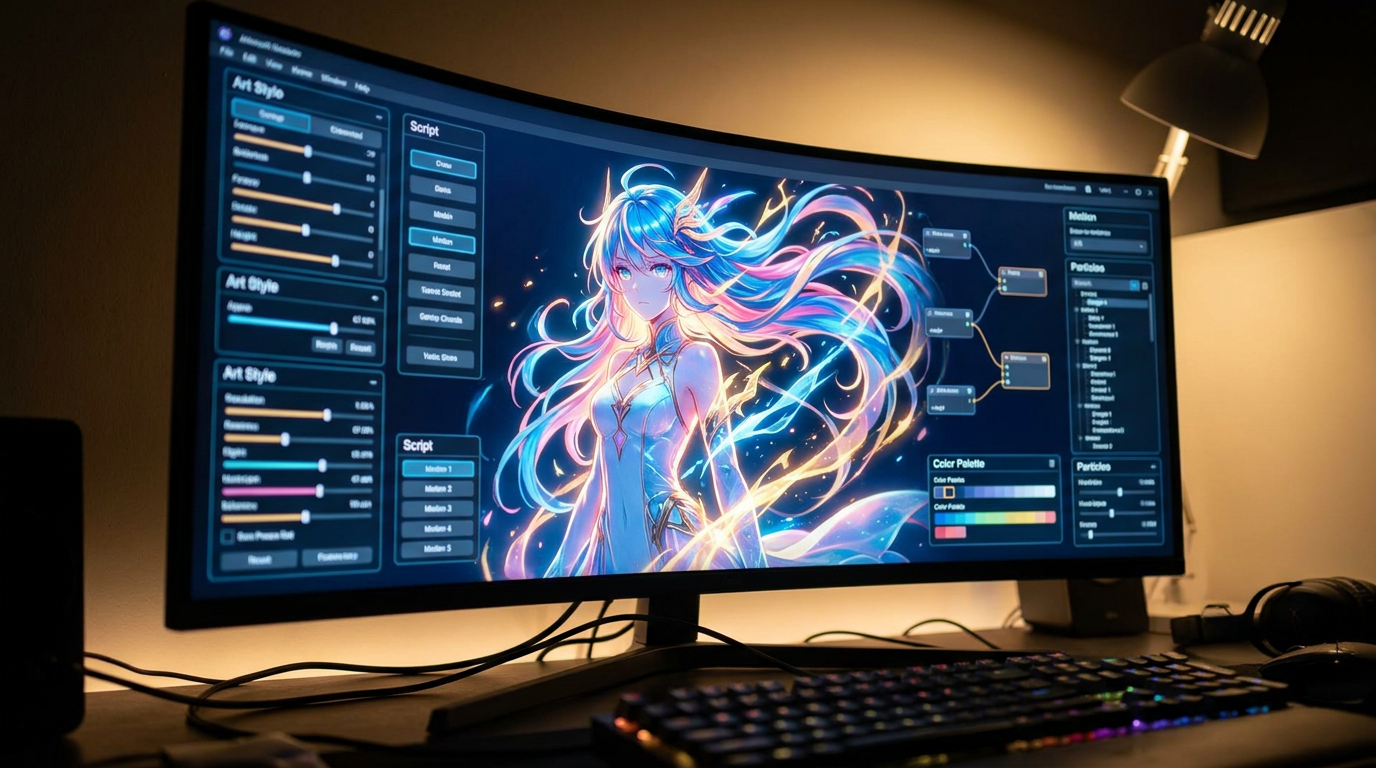
But the content landscape has shifted. Today, you can focus entirely on high-level creativity and narrative hooks while Blipix.pro handles the heavy technical lifting. Whether you are building an anime recap channel, a dramatic storytelling page, or a niche TikTok brand, our engine converts raw text into stylized anime videos.
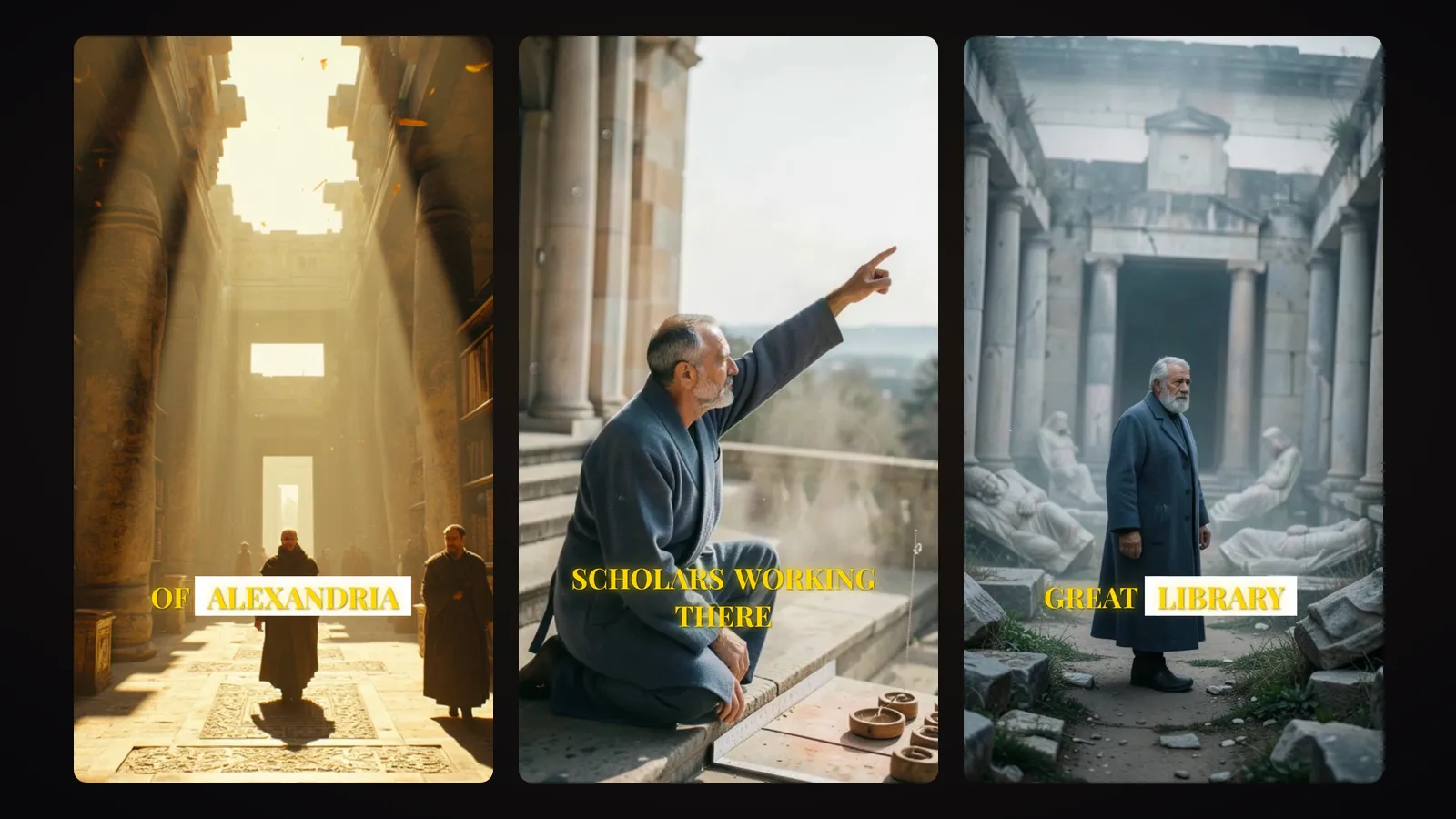
Watch the complete, high-definition example video above this article to see what the rendering engine can do, then follow our definitive step-by-step guide to launch your own viral anime series in under 5 minutes.
Step-by-Step Blueprint: Writing, Rendering, and Automating Your Anime Channel
Step 1: Start a New Video
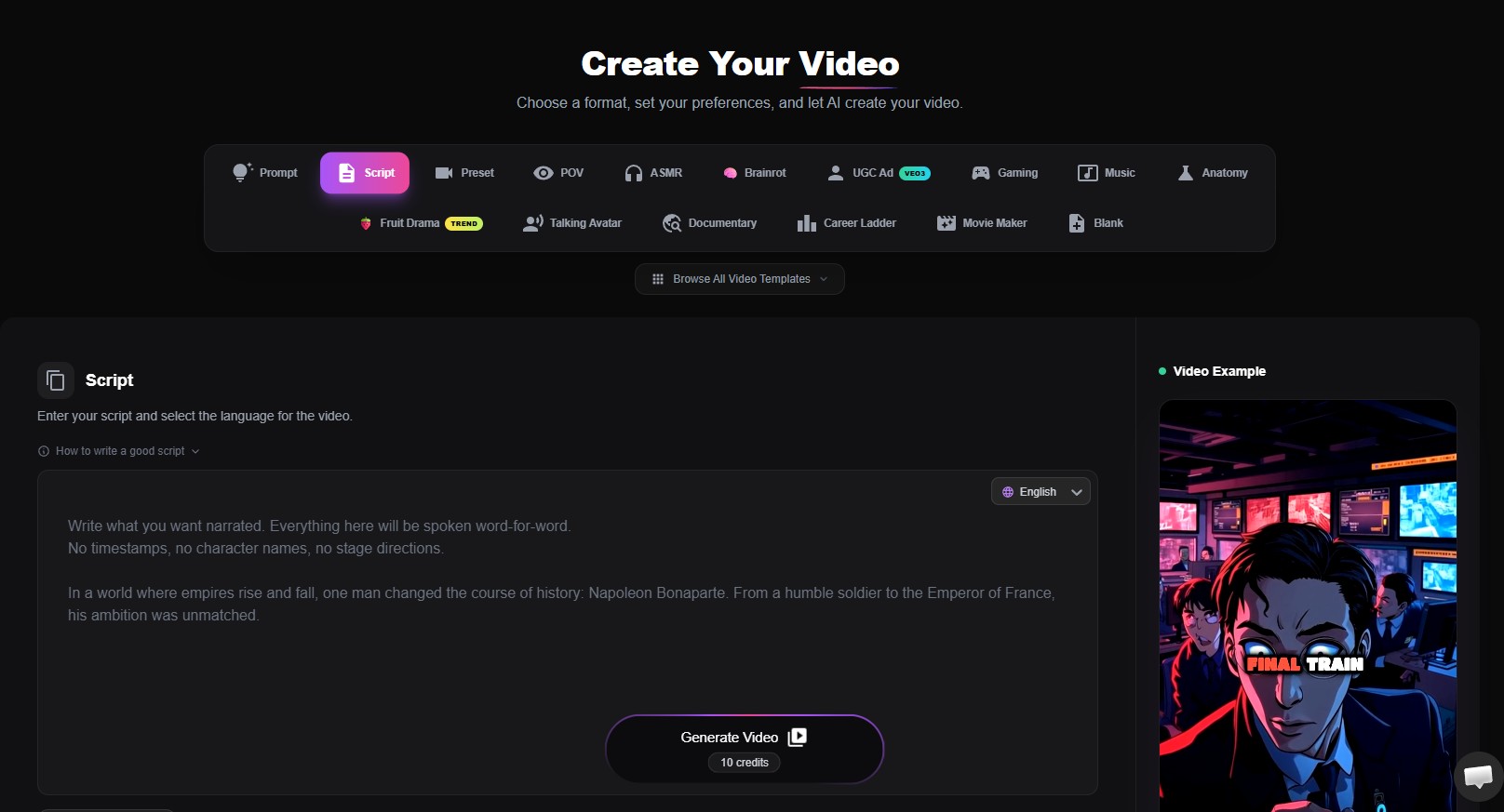
The Blipix ecosystem provides multiple generation modules tailored to different brainstorming workflows:
- Script to Video: The optimal choice if you already have a pre-written, meticulously crafted narrative or an existing blog post you want to adapt.
- Prompt to Video: Ideal for rapid conceptual testing, where you input a single, descriptive paragraph and let the AI generate the full story arc from scratch.
- POV (Point of View): Engineered specifically for highly immersive, character-driven social media formats that place the viewer directly inside the scene.
For this guide, we will select Script to Video to ensure maximum control over our character dialogue and scene-by-scene continuity.
Step 2: Craft Your Narrative (Or Let the AI Script Writer Generate It)
On the video creation page, it’s time to define your story. If you already have an idea typed out, you can paste it directly into the text box.
However, if you are staring at a blank page, you don't have to write a single word yourself. Blipix features an advanced, built-in AI Script Writer engineered to eliminate writer's block entirely.
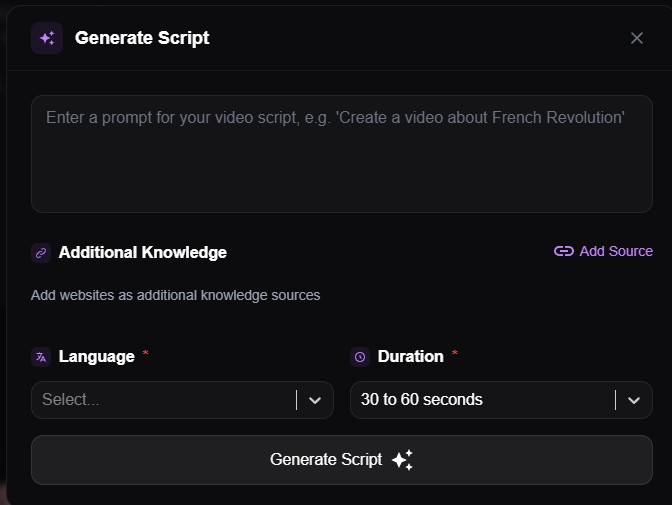
To use the automated script engine, simply click on the button ‘AI Script Writer’:
- The "Generate Script" Prompt Box: Type a brief, one-sentence description of your anime concept (e.g., "A lone samurai discovers a futuristic cyberpunk city hidden beneath ancient ruins"). Click Generate Script, and the AI will instantly create a high-retention narrative complete with character dialogue, dramatic pacing, and scene cues.
- Additional Knowledge (Add Source): Want your anime video to be based on a specific real-world history thread, a news article, or an existing web page? Click Add Source to supply target websites as additional knowledge bases. The AI scriptwriter will scrape the facts and safely adapt them into an original anime script.
- Language Selection: Localization is the secret to scaling globally. Use the Language dropdown menu to select from over 28 different languages. The AI doesn’t just translate words literally; it refines idioms and tone so your script sounds natural to native speakers worldwide.
- Duration Settings: Match your video length perfectly to your distribution platform. Toggle the Duration controls to lock in your timeline target, whether it’s a 30-to-60-second viral Short, or up to 15 minutes length.
Step 3: Choose Your Art Style & Lock In Consistent Characters
Now that your script is locked in, you need to establish the visual identity of your project.
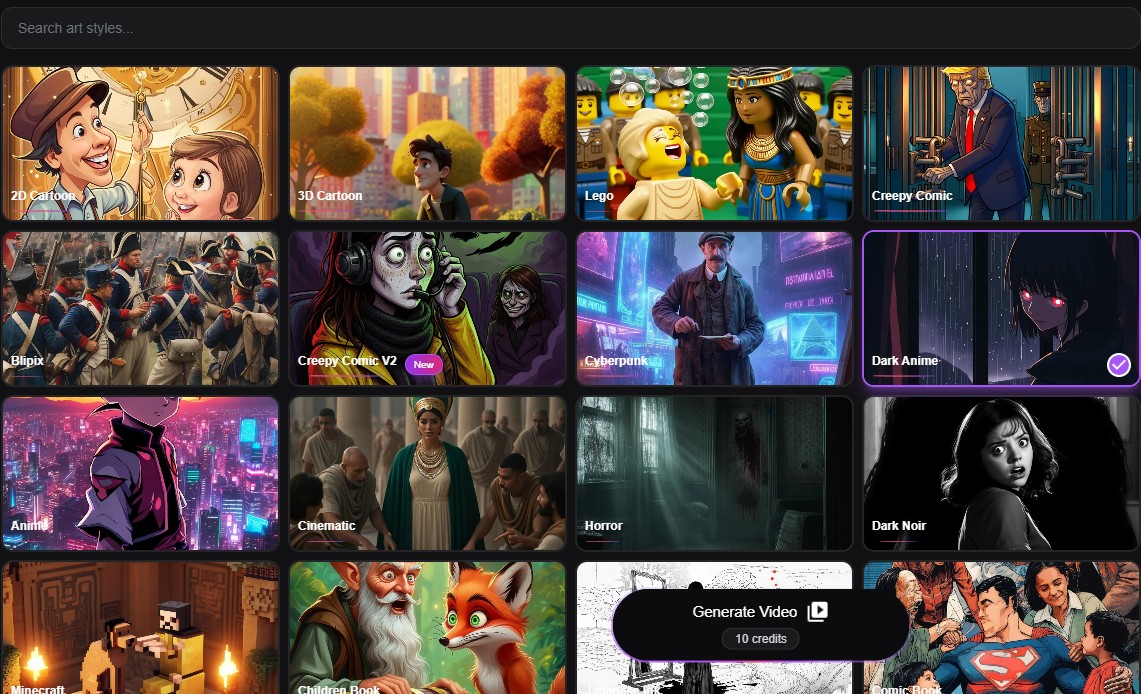
Scroll down to the Art Style section to define your aesthetic:
Select Your Art Style: For authentic anime content, we highly recommend selecting either the standard Anime style for a vibrant, classic studio look, or Dark Anime if your narrative demands a moody, gritty, or highly dramatic cinematic tone (perfect for horror, psychological thrillers, or dark fantasy niches).
The Secret Weapon: Consistent Character Control (Optional)
One of the biggest issue creators face with standard AI generators is that characters constantly shift faces, clothing, and hair colors from one scene to the next. Blipix solves this completely with its Consistent Character engine.
To ensure your protagonist looks identical across every single frame of your story, simply toggle the Consistent Character switch. For the absolute best results, upload a clear reference image of the character you want the AI to mimic, such as Naruto, a specific cyberpunk hero, or your own custom-designed mascot.
Our engine will automatically analyze the facial geometry, costume colors, and art style of your reference file, injecting that exact character model across every generated scene in your timeline.
Here is the newly updated and expanded section for your audio setup. It combines your platform’s native AI voice configuration, voice cloning capabilities, and background music features into a seamless, highly engaging, and conversion-focused guide.
Step 4: Select a Voice Narrative
An immersive anime video relies heavily on a compelling vocal delivery to carry the emotional weight of the story. Once your visuals are locked down, scroll to the audio panel to configure your narrator.
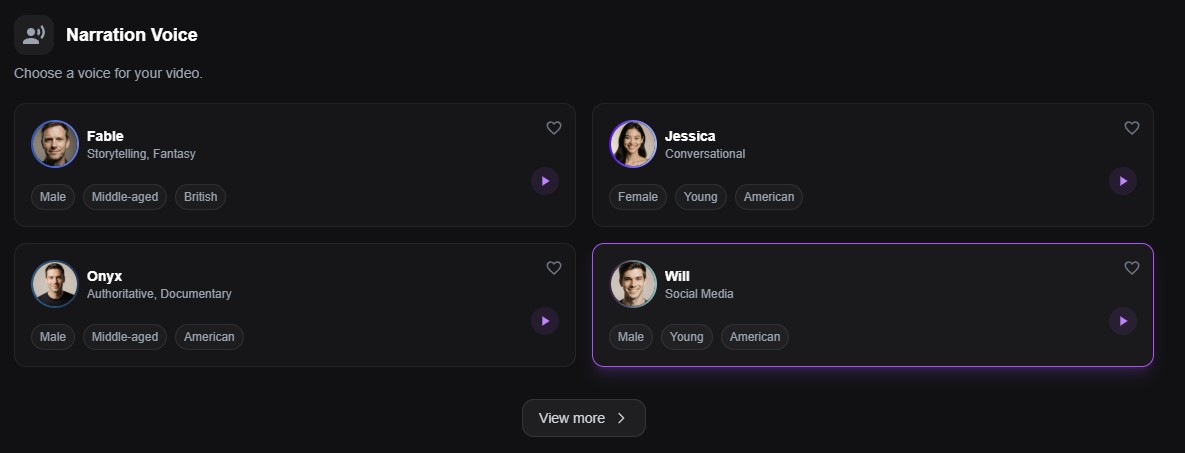
Blipix hosts an extensive library of premium AI voices (poweder by ElevenLabs) engineered to match distinct tones, pacing styles, and content moods. Whether you need an energetic voice for an action recap or a deep, ominous tone for a mystery series, you will find a match.
Finding the Perfect Fit: Don't limit yourself to the default options on your screen. Tip: Click "View More" to open the full list of available voices, where you can preview and test voices across dozens of global dialects.
The Example Setup: For our featured example video, we selected the Will AI voice. It is highly recommended for narrative content because of its natural cadence, crisp pronunciation, and commanding cinematic presence.
Step 5: Choose your background music
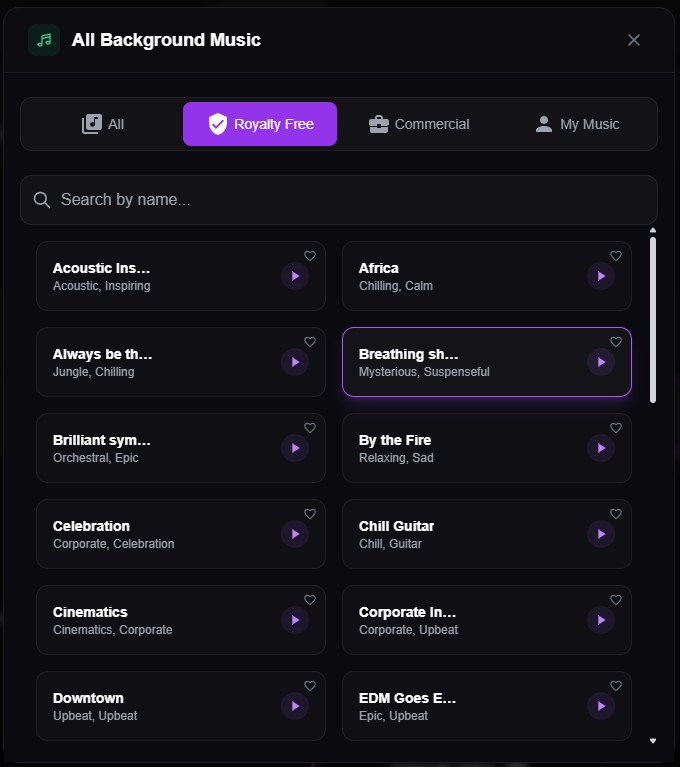
Scroll to the Narration voice section and lick on View more to open the Background Music modal. Blipix hosts an extensive library of premium tracks, categorizeable by license type, whether you need standard Royalty Free beats, Commercial tracks for monetized channels, or want to hit the My Music tab to upload an original file or a custom track you already own.
For Action & Dramatic Tension: Select tracks like Bladerunner (Futuristic, Popular) or Brilliant symphony (Orchestral, Epic) to instantly drive energy behind your scenes.
For Dark, Emotional, or Moody Storytelling: Choose tracks like By the Fire (Relaxing, Sad) or Breathing shadows (Mysterious, Suspenseful) to give deep lore or true-crime style scripts an ominous, atmospheric undertone.
For Uplifting & Casual Content: Lean on tracks like Chill Guitar or Best Day (Happy) to keep the vibe engaging and lighthearted.
Tip: Use the built-in search bar to filter by name, or tap the preview play button on any track tile to test the music before locking it in.
Retention Tip: The Blipix rendering engine automatically optimizes audio mixing. However, a great rule of thumb for creator retention is to ensure your background music sits comfortably around 20% to 25% of your main voice volume.
Step 6: Choose Your Aspect Ratio & Platform Dimensions
Because different social algorithms optimize for completely different layout shapes, Blipix provides three dedicated preset aspect ratios to ensure your video never looks awkwardly stretched or cut off:
9:16 (Vertical Format): Select this if you are pushing content to TikTok, YouTube Shorts, and Instagram Reels. The engine will focus the anime action right in the center of the vertical screen to keep viewers hooked on their feeds.
16:9 (Horizontal Landscape): The gold standard for cinematic, long-form content. Choose this option for traditional YouTube landscape videos.
1:1 (Square Format): The optimal canvas for classic Instagram feeds, Facebook timeline posts. This layout balances text and image spacing perfectly on mobile and desktop feeds.
Step 7: Generate Your Video
With your script optimized, art styles selected, and audio tracks layered, you are ready to bring your production to life. Review your selections one last time to ensure everything looks aligned, then move to the final control button.
Click Generate Video to initiate the rendering pipeline.
At this point, the backend architecture goes to work. Blipix will instantly synchronize your script, render your anime visuals scene-by-scene, balance the chosen voiceover cadence, and lock the background music to your timeline cuts. Within just a few minutes, your completed video will pop up fully rendered and ready for preview.