You uploaded a narrated video and YouTube shows no subtitles yet. Or it does, and they mangle your main subject. Or you're posting one clip to Shorts, TikTok and Reels and wondering whether to burn captions in or let each app make its own.
This guide answers all three from the platforms' help pages as of November 2026. One note first: on TikTok and Instagram, "caption" also means the text you write under a post. This article is about the on-screen words that follow the speech. For the other kind, see our guide to TikTok and Instagram caption limits.
In short
- YouTube gives no fixed time for automatic captions; it depends on how complex the audio is.
- YouTube's own reasons for missing or wrong automatic captions are mostly about the audio, the language and processing time.
- Fix YouTube's automatic captions with "Duplicate and edit" in YouTube Studio, or replace them with your own file, transcript or typed text.
- TikTok lets you edit or remove its auto-generated captions. Instagram gives each reel on/off toggles for closed captions and translations.
- Our default: burn captions in for short vertical videos, and keep a correct closed-caption track where it's cheap.
Closed captions, open captions and subtitles, in plain words
The W3C's explainer on captions and subtitles draws the lines clearly:
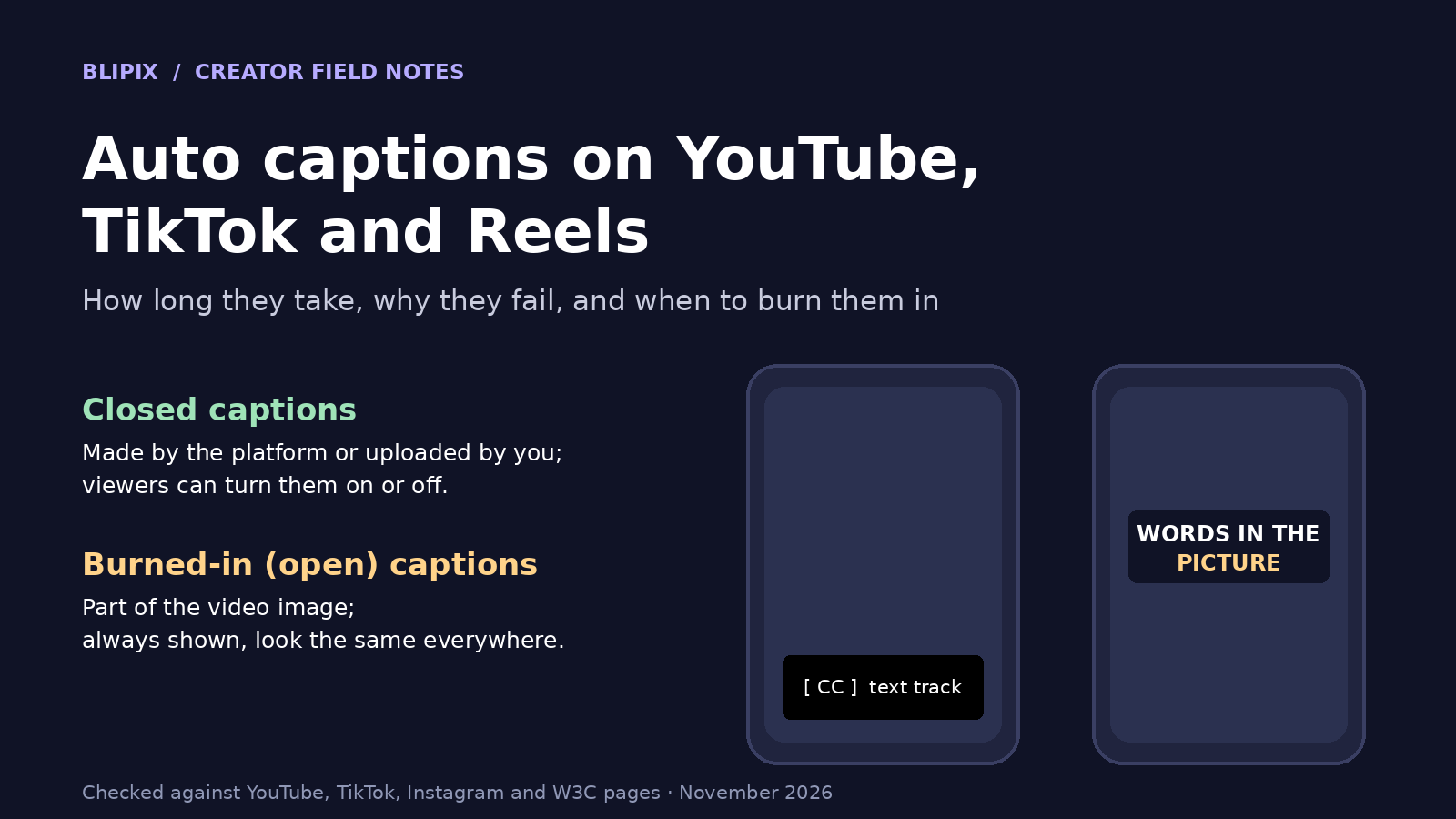
- Captions are a synchronized text version of the speech and non-speech audio needed to understand a video, for people who are Deaf or hard of hearing. Some places call them "subtitles."
- Closed captions can be hidden or shown by the viewer. Most captions are this kind.
- Open captions "are always displayed and cannot be turned off." Captions burned into the picture are open captions.
- Subtitles, strictly, carry the spoken words for people who can hear but don't know the language. The W3C notes that captions are needed for accessibility, while subtitles in other languages are not directly an accessibility accommodation.
The platforms blur these terms: YouTube Studio files everything under "Subtitles," Instagram says "closed captions," and TikTok has "auto-generated" and "creator" captions.
How long YouTube takes to generate automatic captions
YouTube "can use speech recognition technology to automatically create captions for your videos," but it doesn't publish a turnaround time. Its help page "Use automatic captioning" says: "Automatic captions may not be ready at the time that you upload a video. Processing time depends on the complexity of the video's audio."
We won't guess at minutes or hours. When they're ready, "they'll automatically be published on the video," so there's nothing to switch on. The page treats both formats under one heading: "Automatic captions on long-form videos and Shorts."
So check back later in YouTube Studio under Subtitles. If nothing turns up, work through the reasons below or add your own; YouTube encourages creators "to add professional captions first."
Why YouTube's automatic captions don't appear or come out wrong
YouTube's troubleshooting list says a video may not get automatic captions because:
- the captions aren't available yet because YouTube is still processing complex audio;
- automatic captions don't support the language in the video;
- the video is too long;
- the sound quality is poor, or YouTube doesn't recognize the speech;
- "There's a long period of silence at the beginning of the video.";
- several speakers overlap, or multiple languages are spoken at the same time.
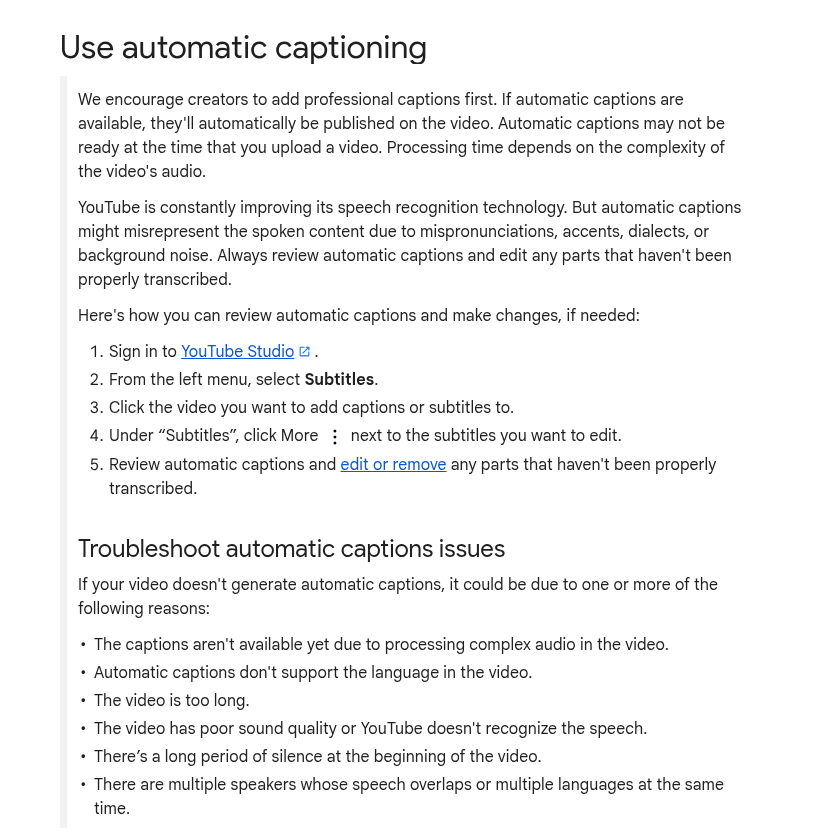
Cropped screenshot of YouTube's public Help page "Use automatic captioning", taken November 12, 2026.
Captions that do appear can still be wrong. YouTube says quality "may vary" and that automatic captions "might misrepresent the spoken content due to mispronunciations, accents, dialects, or background noise," adding that you "should always review automatic captions." They come only in the video's default language; on a video with several audio tracks, that means the default track's language.
If you see "[ __ ]" where a word should be, that's the "Don't show potentially inappropriate words" setting, which is on by default for automatic captions. YouTube says it doesn't affect monetization status, and you can turn it off in Studio > Settings > Channel > Advanced settings.
Our checklist for narrated faceless videos
Our advice, not YouTube's:
- Clear narration. If your AI narrator mispronounces a name, expect the captions to miss it too.
- Music under the voice. Background music can act as the "background noise" YouTube warns about; keep it clearly quieter than the narration.
- No long silent intro. We'd treat a long music-only opening the same way and bring the voice in early.
- One language per video, and check that the video's language setting matches the narration.
- Read the captions once, names and numbers first.
How to fix or replace captions in YouTube Studio
All of this happens in YouTube Studio under Subtitles, per YouTube's pages on editing or removing captions and adding subtitles and captions. To fix automatic captions:
- In YouTube Studio, select Subtitles in the left menu and click the video.
- For the language you want, select Edit in the "Subtitles" column.
- For automatic captions, select Duplicate and edit.
- Click inside a line and fix the text. To fix timing, edit the two timestamp boxes beside it (select Edit timings if they're hidden).
- Click Publish.
Editing automatic captions generates "a new caption track that includes your revisions." The same pages offer other routes:
- Download and re-upload: in the editor, Options > Download subtitles, edit the file in a plain text editor, and upload it again.
- Upload a file: select the video, click ADD LANGUAGE, then ADD under "Subtitles," and upload a file with or without timing. You can also add captions during upload.
- Auto-sync: enter or upload a transcript, such as your final narration script, and YouTube synchronizes it. It must match the spoken language, and speech recognition must support that language. YouTube doesn't recommend it for videos over an hour or with poor audio.
- Type manually, including sound cues like [applause].
- Delete a track: Options > Delete > Delete captions.
YouTube's supported files page recommends SubRip (.srt) and SubViewer (.sbv) for beginners: plain UTF-8 text with the words and time codes, editable in any text editor, with no style information recognized. They differ mainly in how times are written; advanced formats such as WebVTT (.vtt) allow more control over styling or positioning.
Auto captions on TikTok and Instagram Reels
TikTok: auto-generated captions and creator captions
Per TikTok's accessibility page, auto-generated captions use speech recognition: "Captions will be automatically generated for videos that you upload." To set the language, tap More options > Select video language on the post screen; "Eligible videos will show auto-generated captions based on the selected language." To fix them, go to the video, tap the caption, tap Edit captions, edit or remove, and tap Save.
Creator captions are the styled kind. Tap the Captions button on the preview screen's side panel, and "Your video's speech audio will then automatically be transcribed into text." First-time users are asked to opt in. You can edit each line and change the font style and color. On a video with burned-in captions, we'd skip creator captions to avoid a second set.
Instagram Reels: closed captions and translation
Instagram's closed captions page says that when you turn automatic closed captions on, "the speech in the reel is automatically written out as text at the bottom," using speech recognition.
- New reel: Create > Reel > select the video > Next > Next > More options, then the Enable closed captions toggle. A second toggle, Translate closed captions, turns caption translations on or off.
- Posted reels "default to your caption settings on Instagram." To change one: your profile > the reel > Options > Edit > More options.
Instagram's captions overview adds: "This feature isn't available on computers," and "This feature is only available in some locations." The help page describes on/off toggles, not editing the words.
Burned-in captions or platform captions?
Side by side, filled in only from the pages linked above ("Not stated" means the source doesn't say). The platform pages don't say whether viewers can turn each type off, though closed captions, by the W3C's definition, can be hidden or shown.
| Caption type | Who makes the words | Can viewers turn them off? | Can you edit them? | Notes |
|---|---|---|---|---|
| YouTube automatic captions | YouTube's speech recognition | Not stated | Yes: "Duplicate and edit" (new track), or delete | Video's default language only; Studio > Subtitles |
| YouTube uploaded or typed captions | You: a file, an auto-synced transcript or typed text | Not stated | Yes: text and timing, or download and re-upload; or delete | Added per language; Studio > Subtitles |
| TikTok auto-generated captions | TikTok's speech recognition | Not stated | Yes: Edit captions, or remove | Language set on the post screen; TikTok app |
| TikTok creator captions | TikTok transcribes; you review each line | Not stated | Yes, line by line, plus font style and color | Captions button on the preview screen |
| Instagram closed captions | Instagram's speech recognition | Not stated | On or off per reel; editing the words: Not stated | Translation toggle; app only, some locations |
| Burned-in (open) captions you add before upload | You or your editing tool | No: open captions are "always displayed" (W3C) | Before export only | Part of the video image |
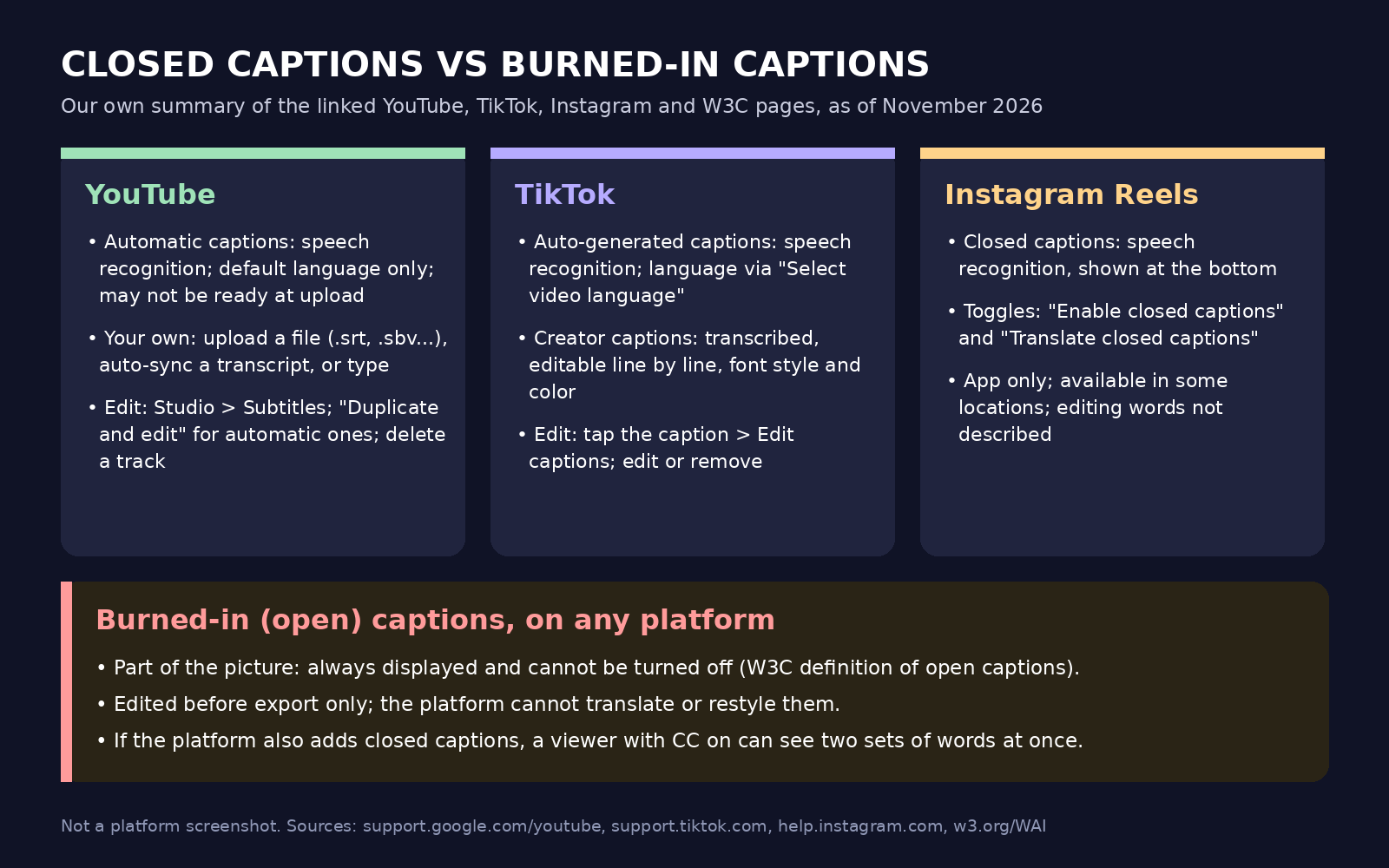
Our own diagram summarizing the linked YouTube, TikTok and Instagram help pages, not a platform screenshot.
Our editorial view:
Burned-in captions always show, including for people watching with the sound off, which we think is common on short vertical video. They look the same on every platform and survive cross-posting. But viewers can't turn them off or resize them, and a platform can't translate them: Instagram's caption translation and YouTube's language tracks work on closed captions, not on words baked into the picture. They must also sit clear of each app's buttons and text (see what covers the frame on TikTok, Reels and Shorts).
Platform captions can be switched off or edited after posting, but automatic ones depend on speech recognition and inherit every audio problem above.
Our default: burn captions in for short vertical videos, and also keep a correct closed-caption track where it's cheap, especially on YouTube long-form, where auto-syncing your script is a small job.
Watch for double captions. When both exist, a viewer who turns on closed captions may see two sets of words at once. You can edit or remove TikTok's auto-generated captions, toggle closed captions per reel on Instagram, and edit or delete tracks in YouTube Studio.
A hypothetical example: one history video on three platforms
This example is hypothetical, not a Blipix customer.
A faceless history channel makes a 50-second vertical video about the pharaoh Hatshepsut: AI narration, quiet background music, and burned-in captions they read once before export. They post the same file as a Short, a TikTok and a Reel.
YouTube. Right after upload, Studio's Subtitles page shows no automatic track, which YouTube says can happen, so they wait. Later the track appears, but it renders "Hatshepsut" as unrelated words. They select Edit, choose Duplicate and edit, fix the name and click Publish. One word is cheap to fix, so they keep the corrected track.
TikTok. On the post screen, they confirm that Select video language matches the narration. After posting, the auto-generated captions misspell the same name, so they tap the caption, tap Edit captions, fix it and save.
Instagram. The closed captions misspell the name too. Instagram's page describes only toggles, so they go to Options > Edit > More options and turn closed captions off for that reel, leaving the burned-in ones.
None of this touches the video file, and the burned-in captions were right from the start.
What this means if you use Blipix
Blipix is our product. It renders captions into the video itself: burned in, word by word, timed to the AI voiceover. You can hide them. You can pick a caption preset, such as Hormozi, Neon, Typewriter or a plain "Subtitle" preset that sits near the bottom without effects, or set your own font, size, colors and highlight color, and place captions at the top, center or bottom.
For most voices, the timing data comes back with the generated narration. For some voices, Blipix runs speech-to-text on the narration to get word timings. Either way the timing is automatic, so read the captions once before posting, especially names and numbers; in the editor's timeline, you can click a word and correct it. It's the same review step we recommend when automating short-form videos.
When Blipix publishes to YouTube, TikTok or Instagram, it uploads the video file with the post text you set: a title and description on YouTube, the two combined into the caption text on Instagram, and the post title on TikTok. It doesn't add a separate caption track or set a caption language; in YouTube's API, a caption track is its own upload, separate from the video. So any automatic captions those platforms add are generated by the platform from the audio, separately from the captions burned into your video. Manage them in YouTube Studio or the TikTok or Instagram app. (For the text fields, see YouTube title, description and tag limits.) Posting from Blipix is part of the paid plans.
On placement, our product pages advise keeping captions out of the bottom third on YouTube Shorts, where YouTube prints the title and channel name, and in the upper middle on Instagram Reels, clear of Instagram's caption text and buttons. So for vertical posts, we'd lean toward center or top, and preview TikTok videos against the app's buttons the same way. New to Blipix? Start with the faceless video generator.
FAQ
How long does YouTube take to make automatic captions?
YouTube gives no time: "Processing time depends on the complexity of the video's audio." When available, they're published automatically.
Why does my Short have no automatic captions?
YouTube covers "Automatic captions on long-form videos and Shorts" together, with one troubleshooting list: still processing, an unsupported language, poor or unrecognized speech, a long silence at the start, or overlapping speakers or languages.
Should I burn captions in if the platform already makes them?
Our view: yes for short vertical videos, since burned-in captions always show and look the same everywhere. Then check each platform's track and fix, remove or switch it off.
Can I upload an SRT file to a Short?
YouTube's pages on adding captions and supported files describe uploading .srt and other files to your videos from Studio's Subtitles page. They say nothing specific about Shorts; the only Shorts mention in these sources is the automatic captioning heading.
Can I edit Instagram's automatic closed captions?
Instagram's help page describes on/off toggles for closed captions and translations, not editing the words. The feature is app-only and available only in some locations.