You've finished a batch of short vertical videos and want each one to go live at a set time, even while you're asleep. Then come the questions: why is there no Schedule button on my phone, how far ahead can I go, whose time zone is this, and why didn't Tuesday's post show up?
Each platform's own scheduler has different rules: where it works, how far ahead it goes, which time zone it uses and what you can change afterward. This guide covers each app's built-in scheduler first, from YouTube's, TikTok's and Instagram's help pages as of November 2026, then tools that post for you. This one is about the mechanics. For when to post, see the best time to upload YouTube Shorts; for how often, how many YouTube Shorts to post a day.
In short
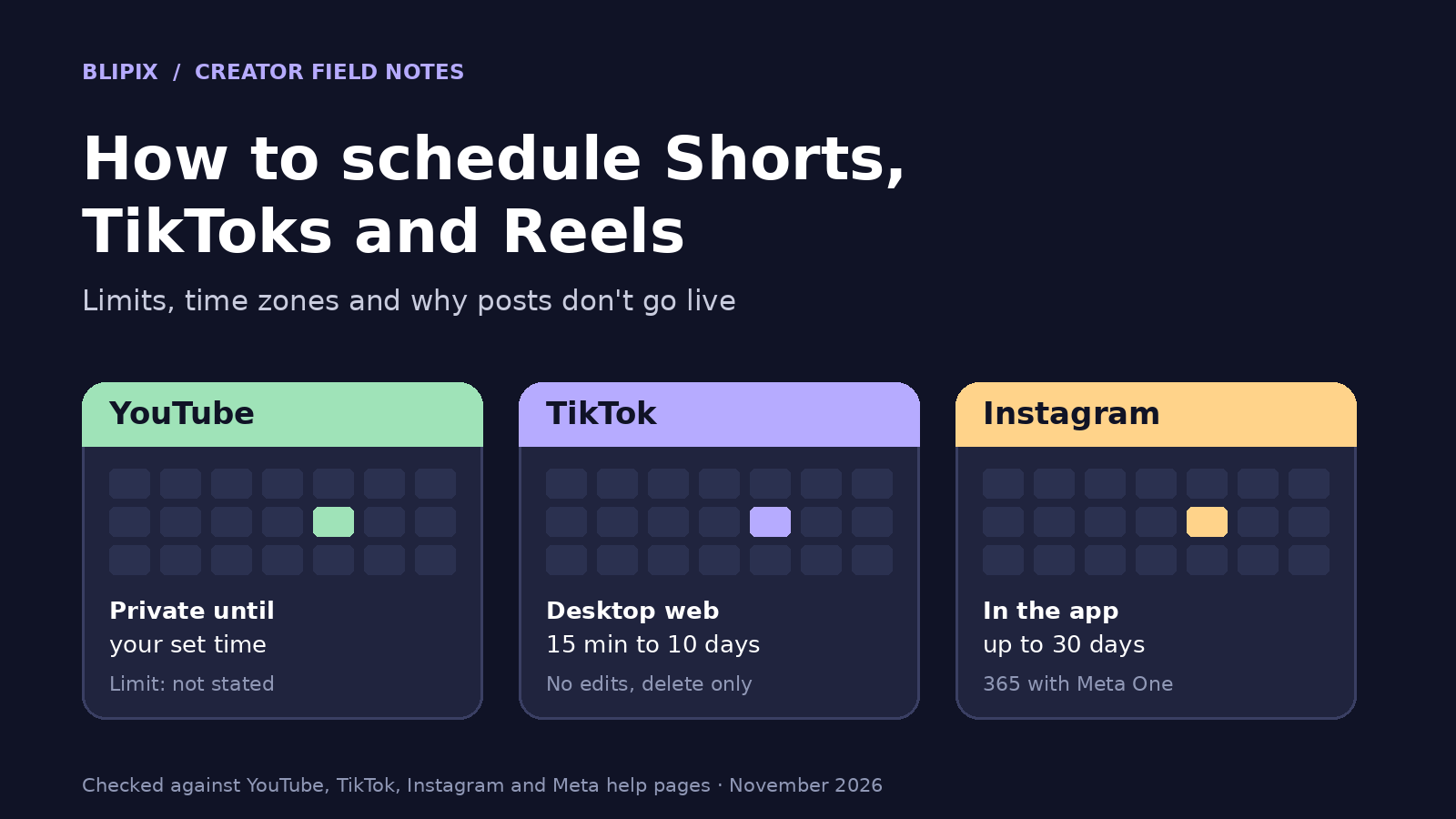
- YouTube: schedule in YouTube Studio or the YouTube app, choosing the date, time and time zone. The help page doesn't state how far ahead.
- TikTok: desktop web only, 15 minutes to 10 days ahead, in your computer's time zone. Scheduled posts can be deleted, not edited.
- Instagram: in the app, from a public account, up to 25 posts a day and 30 days ahead, or a year with some Meta One plans.
- Tools that post for you usually publish through the platform's API, so check their time zone setting too.
How to schedule a video or Short on YouTube
YouTube's help page "Schedule video publish time" puts it simply: "You can use scheduled publishing to schedule a private video to go public at a specific time." You first set the video as "scheduled" or "private" on the upload page. The steps:
- Sign in to YouTube Studio, or use the YouTube app.
- Select Create > Upload videos.
- Select the file and enter the video details.
- Click the Schedule card.
- "Set the date, time, and time zone that you want your video to be published."
- Select Schedule.
To change it later, go to Content, select the video, then Edit > Visibility. To move the time, the visibility must be Private: click EDIT DRAFT and choose the new time under "Schedule." To publish now, set it to Public and select Publish.
How far ahead can you go? YouTube's help page doesn't state a limit.
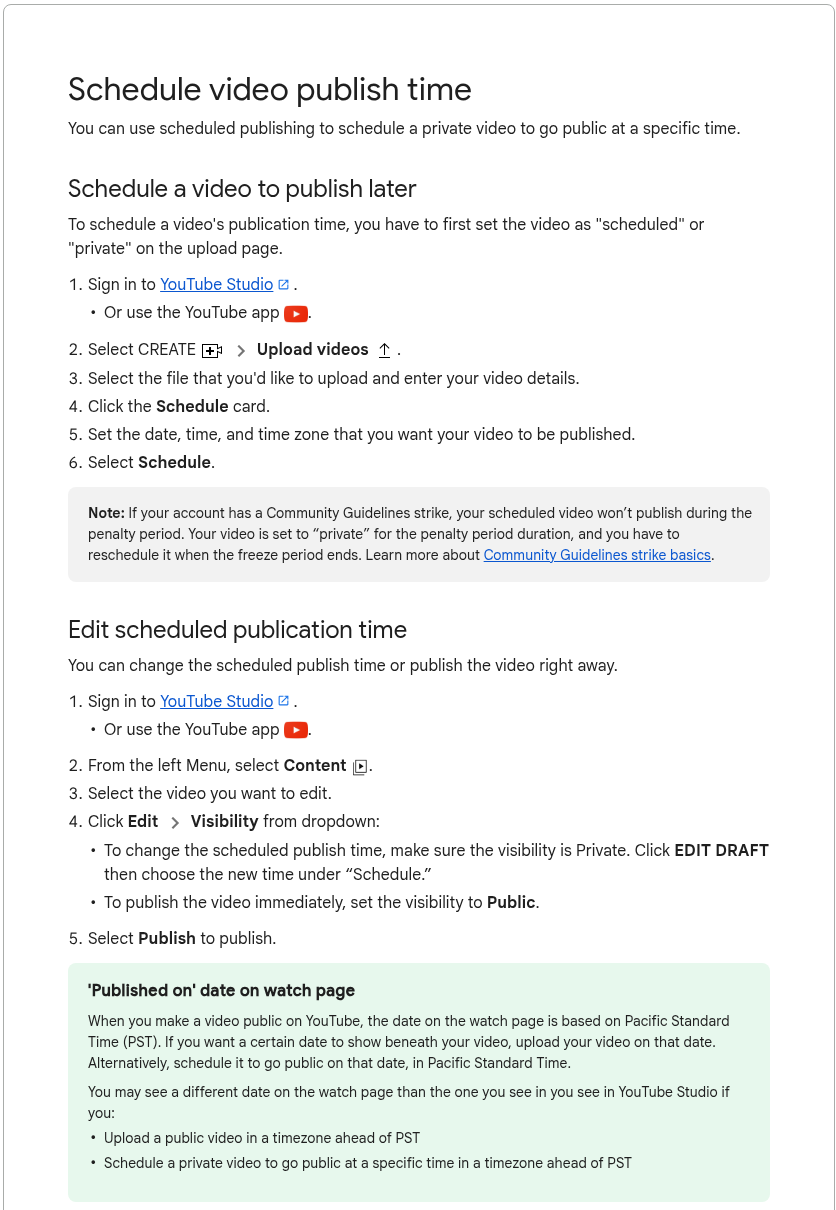
Cropped screenshot of YouTube's public Help page "Schedule video publish time", taken November 13, 2026.
Scheduling Shorts from your phone
YouTube's Shorts help page describes uploading vertical videos from a computer or smartphone. In the app, you add a title, choose privacy and audience, then tap Upload Short or Save draft. It doesn't mention scheduling; the scheduling page lists YouTube Studio or the YouTube app. Our advice: if you don't see a Schedule option on your phone, schedule from YouTube Studio on a computer.
Why the watch-page date can differ from Studio
YouTube says "the date on the watch page is based on Pacific Standard Time (PST)." If you upload a public video, or schedule one to go public, in a time zone ahead of PST, the watch page can show a different date than Studio.
A hypothetical: a creator in Tokyo schedules a video for 9:00 a.m. Tuesday, Tokyo time. In PST that's 4:00 p.m. Monday, so the watch page says Monday. The video went live on time; only the label follows PST. If the date matters, YouTube suggests uploading on that date, or scheduling it to go public on that date in PST.
A strike pauses scheduled videos
With a Community Guidelines strike, "your scheduled video won't publish during the penalty period." It's set to private, and you have to reschedule it when the freeze ends.
How to schedule a TikTok (desktop web only)
TikTok's help page "Schedule video" gives four steps: log in on TikTok Desktop Web and click Upload at the top of your feed; upload the video; after editing, toggle the schedule button and pick a date and time ("Time zone is defaulted to your computer setting"); click Schedule.
The notes matter more:
- Eligibility, in TikTok's words: "Only a 'Business Account' or over with a 10,000 followers or more can access desktop scheduling." It can be read more than one way, so we quote rather than interpret. If the toggle is missing, check this first.
- Scheduled posts show in the Profile view and "cannot be edited but can be deleted."
- You get a push notification when the post is live.
- The window is 15 minutes minimum, 10 days maximum.
- It's "not available for TikTok Mobile Web."
TikTok's "Making a post" page adds that drafts "are visible only to you on your profile," and that new posts keep your previous post's privacy setting. If the last one was "Only you," the next will be too, so check before you post or schedule.
Our advice: since you can't edit a scheduled TikTok, proofread the caption first. Our guide to TikTok and Instagram caption limits covers the text.
How to schedule Instagram Reels, and the 30-day limit
Instagram's help page "How to create and manage scheduled posts and Reels on Instagram" sets the ground rules: you need a public account; "You can schedule up to 25 posts a day, up to 30 days in advance"; and scheduled content keeps the privacy and audience settings you had when you scheduled it.
- Tap Create (top left, or swipe right in Feed), then Reel or Post.
- Select your video and tap Next.
- Add a caption, effects or filters.
- Tap More options, turn on Schedule this reel, and choose a date and time.
- Tap Done, Back, then Schedule.
To manage it, open your profile, tap the menu (top right), and below "Your insights and tools" tap Scheduled content. Each item's Options offer Delete, Edit post, Reschedule or Share now. It's also under Create > Post or Reel > Scheduled.
One catch: "Features like product tagging, collaborative posts, sponsored posts and fundraisers aren't compatible with scheduled content at this time."
Scheduling further ahead with Meta One
Meta's page on scheduling further ahead with Meta One says an eligible public account with a Meta One Advanced, Expert or Max plan can schedule posts and reels "up to a year (365 days) in advance." Without a subscription, it's 30 days. It's "not available to teens." The same page says Follower active times suggestions "reflect your current time zone and use your followers' activity over the last 28 days."
Older articles around the web still say 75 days. As of November 2026, Instagram's own help page says 30.
YouTube, TikTok and Instagram schedulers side by side
Only the linked help pages; where a page doesn't say, we wrote "Not stated."
| Scheduler | Where you schedule | How far ahead | Time zone | Change after scheduling | Watch-outs |
|---|---|---|---|---|---|
| YouTube (Studio or YouTube app) | YouTube Studio or the YouTube app, Schedule card at upload | Not stated | You choose it; watch-page date uses PST | New time (Private, EDIT DRAFT) or publish now (Public) | A Community Guidelines strike holds it private; reschedule after the freeze |
| TikTok (desktop web) | TikTok Desktop Web, not Mobile Web | 15 minutes to 10 days | Defaults to your computer setting | Can't edit; can delete | "Business Account" or over with 10,000 followers or more (TikTok's wording) |
| Instagram (app, no subscription) | Instagram app, public account | Up to 30 days; up to 25 posts a day | Not stated | Delete, Edit post, Reschedule or Share now | Keeps privacy and audience settings; product tagging, collaborative posts, sponsored posts and fundraisers can't be scheduled |
| Instagram with Meta One (Advanced/Expert/Max) | Instagram app, eligible public account | Up to a year (365 days) | Follower active times suggestions reflect your current time zone | Not stated | Not available to teens |
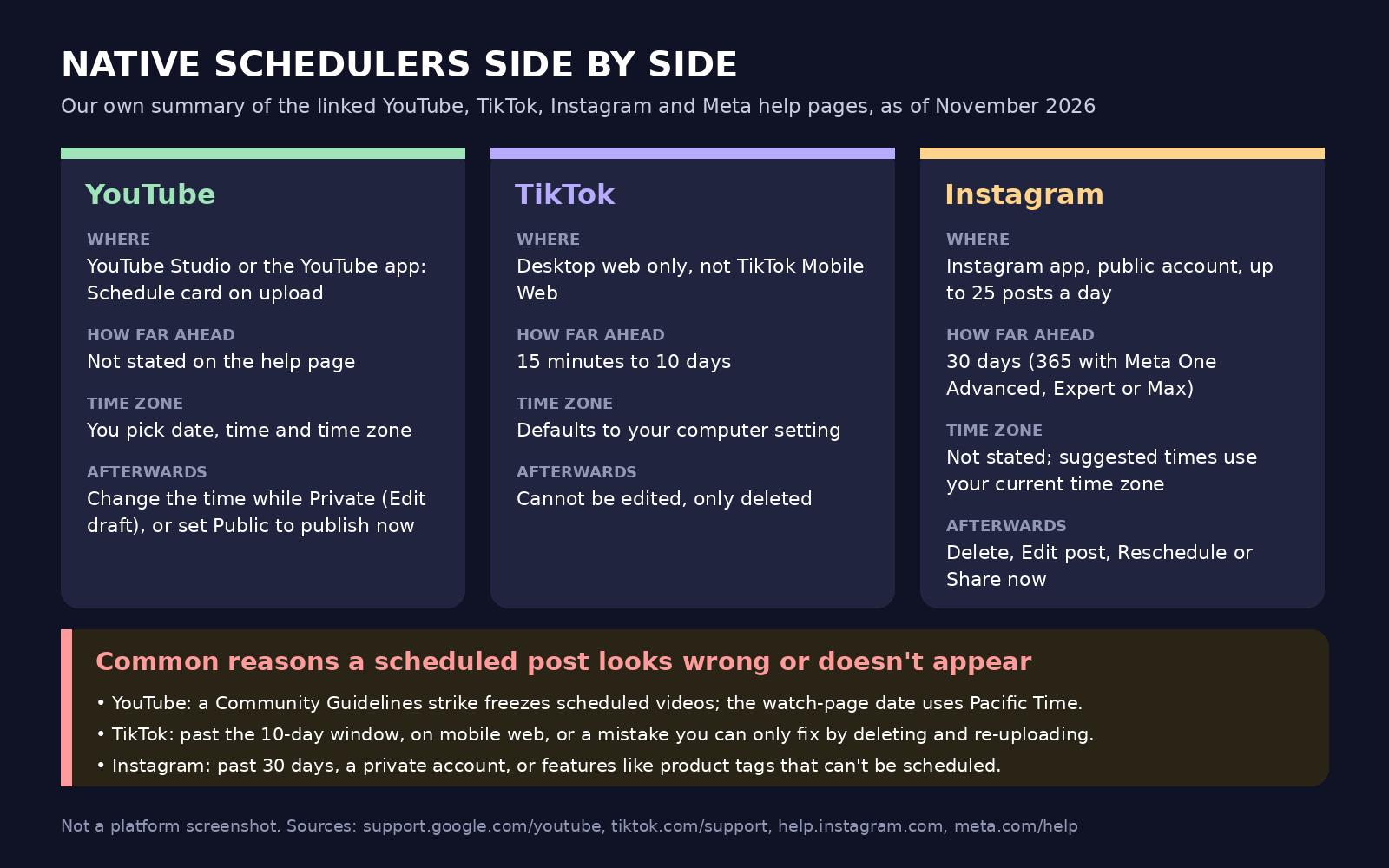
Our own diagram summarizing the linked YouTube, TikTok and Instagram help pages, not a platform screenshot.
Why a scheduled post didn't go live, or went live at the wrong time
From the same help pages:
- A YouTube strike. The video stays private during the penalty period; reschedule after.
- A date that looks wrong but isn't. The watch-page date is in PST.
- A time zone mismatch. YouTube's scheduler asks for a time zone, so check which one is selected. TikTok's defaults to your computer's setting, so a laptop set to another zone shifts the slot. Instagram's Follower active times suggestions reflect your current time zone.
- A TikTok that needed fixing. It can't be edited; delete it and upload again.
- A date outside the window: 10 days on TikTok, 30 on Instagram without Meta One.
- An Instagram feature that can't be scheduled, such as product tagging or a collaborative post.
- The wrong device. TikTok scheduling needs desktop web.
Our advice on top:
- Watch each video before scheduling it. A schedule removes the last moment you'd catch a mistake.
- Write the audience's local time next to each slot in your plan.
- After the first scheduled post, check it went live when you expected.
Built-in schedulers vs tools that post for you
Everything above is a native scheduler: the platform holds your uploaded video until the time you set. Third-party tools usually work differently. Many store the video themselves and publish it through the platform's API when the time comes, so until then the platform may show nothing. That's our general description; check how your tool works.
On YouTube, the API has its own scheduling field. In the YouTube Data API's videos resource, status.publishAt "can only be set if the video's privacy status is private and the video has never been published." If the time is in the past, "the video will be published right away."
So a YouTube tool can either upload your video as private with a publish time, or hold it and upload at the slot. Either way, check the tool's own time zone setting: a slot read in the wrong zone lands at the wrong hour.
Whichever route you use, scheduling changes when a video goes public, not the rules it must meet; see YouTube's inauthentic content policy for faceless and AI channels.
A worked example: one batch, three schedulers (hypothetical)
This is a hypothetical, not a Blipix customer; the times are placeholders, not advice.
A solo creator in Paris has viewers mostly on the US East Coast. On Sunday they finish five Shorts for Monday to Friday and watch each one through. Their plan lists each slot in New York time, with Paris time beside it.
YouTube. In YouTube Studio, they schedule each Short with the New York time zone: four at midday, Friday's at 9:00 p.m.
TikTok. On desktop web, where their account has the toggle, they schedule the TikTok versions, all within 10 days. TikTok's picker defaults to the computer's Paris time zone, so they enter the Paris column: 6:00 p.m., and 3:00 a.m. Saturday for Friday's. They proofread captions first.
Instagram. In the app, they schedule the Reels, well within 30 days. Instagram's page doesn't say which time zone the picker uses, so they enter Paris times and check Monday's reel against the plan when it goes live.
The odd date. On Saturday morning in Paris, Friday's Short shows Friday's date, though for them it went live on Saturday. That's the PST rule: 9:00 p.m. Friday in New York is 6:00 p.m. Friday in Pacific time. For their New York viewers, it was Friday anyway.
What this means if you use Blipix
Blipix is our product, and it posts differently from the schedulers above. In Blipix, scheduled posting is part of a series (our YouTube automation page walks through series). You pick once a day, twice a day or three times a week, and the posting times, in 15-minute steps, in your local time. The series keeps that time zone, and a content calendar in the app shows upcoming series posts with their time and time zone.
Each episode is made one cycle ahead, and we email you a link to it in the editor. Your first video posts when the second one is created, and each video posts one cycle later, so you can review and edit it before it goes live. Because the episode is rendered when its slot comes up, edits you make in the editor before then are what gets posted. It's the review step we recommend when automating short-form videos.
Blipix doesn't use YouTube's, TikTok's or Instagram's own schedulers. When a slot comes up, it renders the waiting episode and uploads it then, with the visibility you chose for the series: public, private or friends (YouTube treats friends as unlisted). So you won't see it in YouTube Studio's scheduled list, TikTok's scheduled posts or Instagram's Scheduled content beforehand, and it goes live shortly after the slot, not to the minute.
If your credits run out, the series pauses before that run, so the waiting episode isn't posted either, and we email you. If YouTube needs you to reconnect your channel, we email you too.
Outside a series, publishing from the editor's export window posts right away. For a one-off video at a set time, download it and use the platform's scheduler above. On YouTube, you should be able to post it as Private and set the schedule in YouTube Studio.
For making the videos, see our pages on YouTube Shorts, Instagram Reels and TikTok videos. Posting from Blipix, series included, is part of the paid plans.
FAQ
How far in advance can you schedule a YouTube Short?
YouTube's help page doesn't state a limit. It describes scheduling in YouTube Studio or the YouTube app with a date, time and time zone.
Why can't I schedule a TikTok from my phone?
TikTok describes scheduling on Desktop Web and says it's "not available for TikTok Mobile Web." Eligibility, in its words: "Only a 'Business Account' or over with a 10,000 followers or more can access desktop scheduling."
Can I edit a scheduled TikTok?
No. Scheduled posts "cannot be edited but can be deleted," so delete it and schedule a corrected version.
Can I schedule Reels more than 30 days ahead?
Only with a Meta One Advanced, Expert or Max plan on an eligible public account: up to a year (365 days). It isn't available to teens. Otherwise, the limit is 30 days.
Why does my YouTube video show yesterday's date?
The watch-page date is based on Pacific Standard Time, so it can differ from Studio if you uploaded or scheduled in a time zone ahead of PST.