Every vertical video you post gets a still image that represents it before anyone presses play. YouTube calls it a thumbnail. TikTok and Instagram call it a cover. Each app has its own rules for where you set it, what you can upload and how it gets cropped. Those rules change again when a tool publishes the video for you.
This guide is about covers of vertical short-form videos on YouTube Shorts, TikTok and Instagram Reels. It is not about designing 16:9 thumbnails for long-form YouTube videos. We only mention those where the rules differ. It also doesn't promise that any cover improves reach, because none of the sources we cite say so. What follows is what each app's Help pages and API references say as of November 2026. We also cover what our product, Blipix, does when it publishes for you.
In short
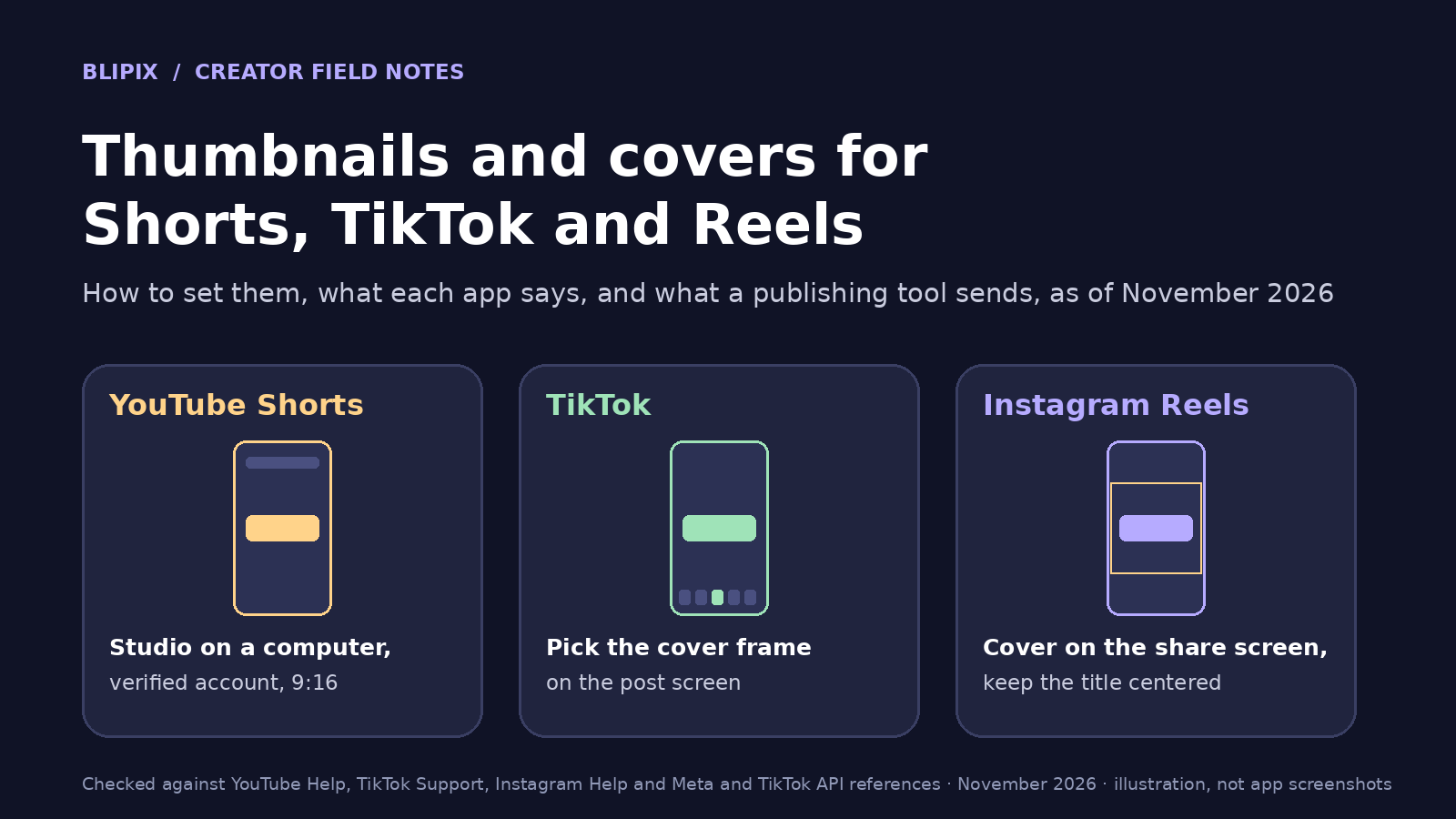
YouTube lets verified accounts add a custom Shorts thumbnail, but only in YouTube Studio on a computer. TikTok's Help Center documents picking a frame as the cover before you post. Instagram lets you choose a frame or a custom cover on the share screen. Its own pages disagree on whether you can change it later. When a tool publishes for you, the TikTok or Instagram cover is whatever the tool sends, or the first frame if it sends nothing. Our advice:
- Keep the title short and centered.
- Set the cover before you share.
- Check how it looks on your real profile.
- Don't treat the cover as a ranking lever.
How to add a custom thumbnail to a YouTube Short
YouTube's Help Center page Add custom thumbnails on YouTube states the main condition in a note: "Custom thumbnails for Shorts are currently only available to add in YouTube Studio on a computer. Your account must be verified to use this feature." The same page says you "can choose from auto generated suggested options, or upload your own if your account is verified." So you only need verification to upload your own image. Our guide to YouTube's 15-minute limit explains phone verification and the intermediate features tier, which includes custom thumbnails.
To set it in Studio:
- Sign in to YouTube Studio.
- Choose Content in the left menu, then Shorts at the top.
- Find the Short and click the pencil icon to edit it.
- Under Thumbnail, click Upload file and pick an image from your device.
- Click SAVE.
These steps start from a Short that's already uploaded, so you set the thumbnail afterward, from the Short's edit page. YouTube adds that "It may take time for your thumbnail changes to appear on YouTube."
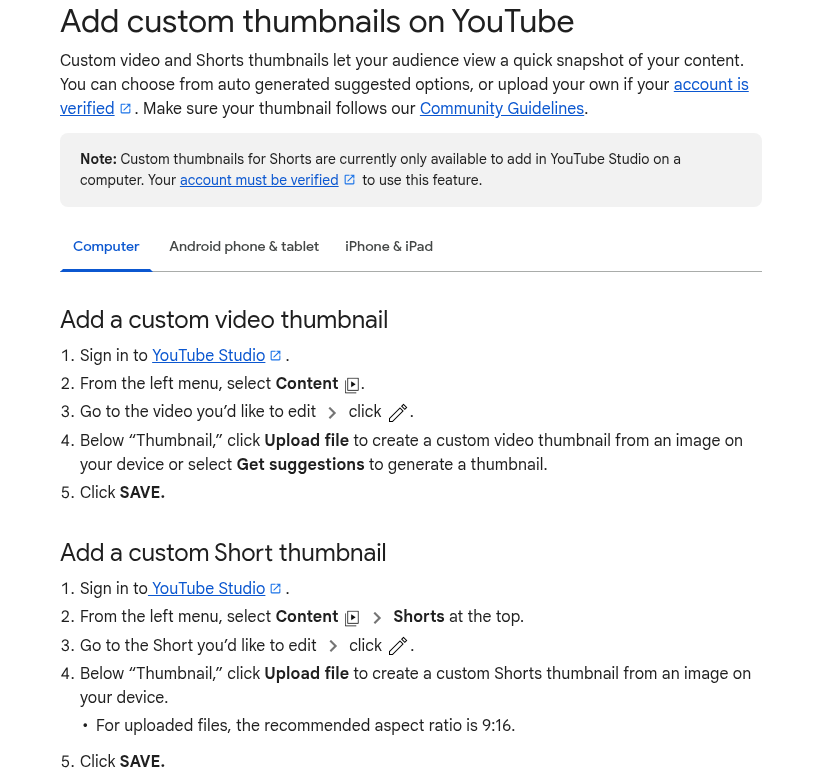
Cropped screenshot of YouTube's public Help Center page "Add custom thumbnails on YouTube", taken November 19, 2026.
YouTube's size, format and policy rules for Shorts thumbnails
For uploaded files, YouTube recommends a 9:16 aspect ratio for Shorts. Its best practices call for an image that is "as large as possible." For Shorts, YouTube recommends a resolution of 2160 x 3840 pixels, with a minimum height of 640 pixels, in a format such as JPG or PNG. Size limits depend on the device. Mobile allows 2 MB for video thumbnails, and desktop allows 50MB for video, Shorts and podcast thumbnails.
This is where the rules for vertical and landscape images differ: "Vertical videos with 16:9 custom thumbnails will be replaced by an auto-generated 4:5 thumbnail on the home, explore, and subscription pages." The custom image still shows on the watch feed, in watch history and on non-mobile platforms. If you also make long-form videos, note that our free Thumbnail Designer is aimed at landscape 16:9 drafts. It is not the tool for 9:16 Shorts covers.
YouTube's thumbnail policies apply to Shorts too. YouTube can reject a thumbnail and put a strike on your account if it contains:
- nudity or sexually provocative content
- hate speech
- violence
- harmful or dangerous content
The page also warns: "Repeat offenses may lead to the removal of your custom thumbnail privileges for 30 days or even account termination."
Each channel also has a daily limit on custom thumbnail uploads. If you see "Daily custom thumbnail limit reached," YouTube says to try again in 24 hours. Limits "may vary by country/region or channel history." Keep this in mind if you set thumbnails for a batch of Shorts at once.
How to choose a TikTok cover
TikTok's Help Center page on editing, posting and deleting says: "A video cover is the thumbnail that previews your video in places like your profile or search results." You can select it before posting a new video:
- On the post screen, tap Select cover on the video thumbnail.
- Drag the frame to any point in the video.
- Tap Save at the top.
That page only covers choosing the cover before you post. It says nothing about changing it afterward, and it describes picking a frame, not uploading a separate image. So we don't claim TikTok supports either. Your app may offer more, so check on your own device.
If a tool posts for you through TikTok's Content Posting API, a parameter sets the cover. The Direct Post reference documents video_cover_timestamp_ms, which "Specifies which frame (measured in milli-seconds) will be used as the video cover." If it is "not set, or the specified value is invalid, the cover is set to the first frame of the uploaded video."
Instagram Reels covers: the app, the Help Center and the API
Two of Instagram's own pages don't agree, so we'll show both.
The Help Center page on reel size and aspect ratios recommends cover photos of 420px by 654px (a 1:1.55 ratio). It also says: "Right now, you can't edit your cover photo after you've uploaded it."
Instagram's guide to making Reels, posted September 28, 2026, puts the cover choice on the share screen: "Choose a frame from the reel or upload a custom cover. This is what shows on your profile grid." Its FAQ says: "You can edit the caption, cover image, tags and location after posting."
We can't tell you which page is current for your account. Set the cover on the share screen before you share, as if there's no second chance. Then see whether your app lets you edit it afterward. The pages we read also don't say how the profile grid crops a cover, so we won't guess. Our advice is to keep the title near the center and look at your own grid after your first post.
For tools that publish through Meta's API, the IG User Media reference is more specific:
- Aspect ratio: Meta recommends 9:16 "to avoid cropping or blank space."
- Crop to the reel cover: a cover image that isn't 9:16 is cropped to "the middle most 9:16 rectangle."
- Crop to the feed: if the reel is shared to the feed, "the middle most 1:1 square" becomes the feed post's cover.
- thumb_offset: picks a frame in milliseconds. The default is 0, the first frame.
- cover_url: points to an image to use as the cover instead. If a tool sends both, Meta uses cover_url and ignores thumb_offset.
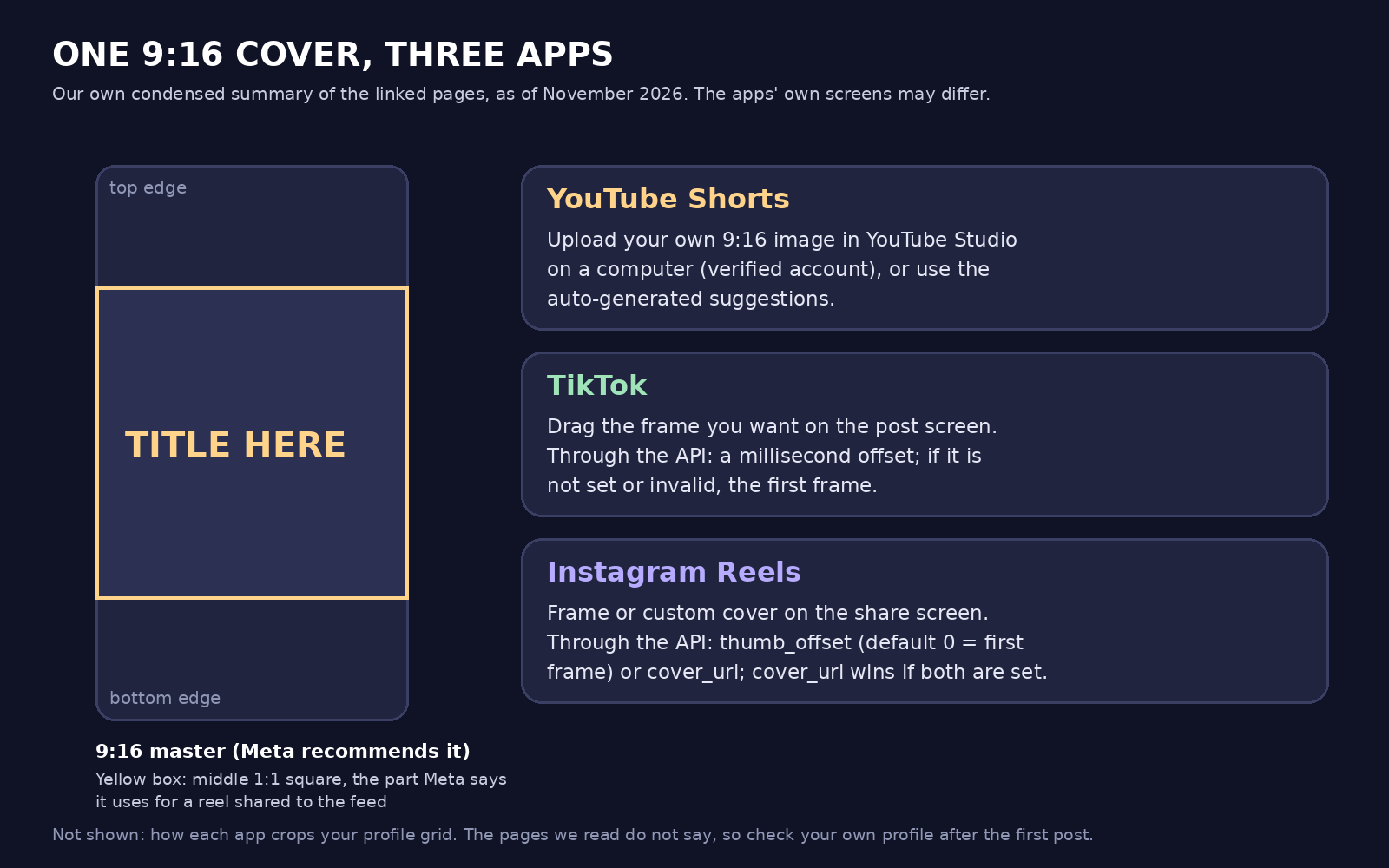
Our own summary graphic, not an app screenshot. Crop and cover facts are condensed from the linked Meta, TikTok and YouTube pages as of November 2026.
YouTube Shorts, TikTok and Reels covers side by side
This table condenses the pages linked above. Where a page doesn't cover something, we say so.
| YouTube Shorts | TikTok | Instagram Reels | |
|---|---|---|---|
| Where you set it | YouTube Studio on a computer | Post screen, before posting | Share screen |
| Custom image upload | Yes, if verified (computer only) | Not documented in the pages we cite | Yes, a "custom cover" per the Reels guide |
| Recommended shape in the sources | 9:16 | None given on the page we cite | 9:16 (Meta API reference); 420 by 654 px (Help Center) |
| Editable after posting | Yes, from the Short's edit page in Studio (the steps start from an uploaded Short) | Not documented in the pages we cite | Sources disagree |
| What a publishing tool can send | Not covered in the pages we cite | A frame time (video_cover_timestamp_ms); first frame if unset | A frame time (thumb_offset, default 0) or an image (cover_url, which wins) |
A worked example
Mara is hypothetical, not a real person. She runs a small channel of 40-second history Shorts made with an AI tool and posts each one to all three apps.
She uses one short, centered title per video and keeps text away from the top and bottom edges. That is our advice, not an app rule. Meta crops cover images that aren't 9:16 to the middle and uses a centered 1:1 square for feed posts, so only the middle is sure to survive. The same goes for logos, as we explain in our guide to watermarks on TikTok, Reels and Shorts.
Her account is verified. After uploading to YouTube, she opens YouTube Studio on her computer, finds the Short under Content > Shorts and uploads a 9:16 thumbnail. On TikTok and Instagram, she sets the cover before sharing. That's the step TikTok's Help page documents, and one of Instagram's pages says the cover can't be changed later. Then she checks each profile and notes any differences for next time. This doesn't tell her anything about views. It just means every cover is one she chose rather than a default.
What Blipix does with covers and thumbnails
Here is what Blipix does in our code as of November 2026, and where it stops.
The editor has a Thumbnail tab with an optional Thumbnail Intro, which is a title card shown at the start of your video:
- Length: a slider sets it from 0.3 to 3 seconds.
- Modes: Text & Image puts a title over an image. Image Only shows just the image.
- Text styles: there are 11 of them: white box, dark box, gradient, outline, tilted card, neon glow, banner, double shadow, glass, bold frame and no background.
- Image: use one of the video's frames or upload your own.
The main content is offset to start after the intro, so the title card is part of the video itself, not a separate cover file. Our render code skips the intro for gaming-template videos, which are the ones built on background gameplay clips.
When Blipix publishes, it sends a cover frame based on whether the intro is on:
- TikTok: video_cover_timestamp_ms is 0 with the intro on and 1000 with it off.
- Instagram: thumb_offset is 0 with the intro on and 1000 with it off. Blipix doesn't send cover_url.
With the intro on, the cover is the first frame, which is your title card. With it off, the cover is the frame one second in, which you didn't pick. Our Instagram Reels page describes the same behavior for Instagram.
YouTube works differently. In our code, the YouTube publishing step can set a custom thumbnail only if it receives a thumbnail image URL:
- Publishing from the editor passes the video's stored thumbnail URL if there is one, and nothing otherwise.
- The series autopilot's YouTube publishing passes only an on/off flag, not an image URL.
- We did not find a control in the editor that sets that URL.
So if you make YouTube Shorts with Blipix, set the thumbnail yourself in YouTube Studio on a computer after upload. YouTube says it offers auto-generated suggested options. Beyond that, we can't say what YouTube shows when no thumbnail is supplied.
Two caveats. First, the intro takes up the first moments people watch, and a title card won't suit every format. Second, if your post is sponsored, see our guide to disclosing sponsored Shorts, TikToks and Reels. It explains why we'd turn the intro off for a paid-partnership Reel.
Before you publish
- Decide which app's cover matters most for this post, since the apps set and crop covers differently.
- Keep the title short and the subject centered, away from the top and bottom edges.
- If you want your own Shorts thumbnail, check that your YouTube account is verified.
- After upload, set the YouTube thumbnail in YouTube Studio on a computer, using a 9:16 image.
- Set TikTok and Instagram covers before you share, and check the cover before a scheduled post goes out.
- Look at the result on each real profile and note anything that differs from what you expected.
What we checked and what we did not
We checked:
- The YouTube, TikTok and Instagram Help pages and the TikTok and Meta API references linked above, as of November 19, 2026.
- Our own code for the Thumbnail Intro, the cover values Blipix sends to TikTok and Instagram, and what it passes to YouTube.
We did not check:
- Whether a cover or thumbnail has any effect on views or reach.
- TikTok's or Instagram's current in-app labels on every device.
- Whether Instagram has since updated its Help Center page or its Reels guide so they agree.
FAQ
Can I upload a custom thumbnail for a Short from my phone?
No, according to YouTube's Help Center. Right now you can only add custom Shorts thumbnails in YouTube Studio on a computer, and your account must be verified.
Why does my vertical video show a different thumbnail on the home page?
If you uploaded a 16:9 custom thumbnail, YouTube replaces it with an auto-generated 4:5 one on the home, explore and subscription pages. Your image still appears on the watch feed, in watch history and on non-mobile platforms.
Can I change a TikTok cover after posting?
The Help page we cite only covers choosing a cover before you post. Check whether your own app lets you change it.
Can I change an Instagram Reel cover after posting?
Instagram's sources disagree. The Help Center says no, but the September 2026 Reels guide says you can edit the cover image. To be safe, set it before you share.
Does Blipix pick a cover for my TikTok or Instagram post?
Yes, it sends a frame time. With the Thumbnail Intro on, it sends 0 milliseconds, so the cover is your title card. With the intro off, it sends 1000 milliseconds, so the cover is the frame one second in.