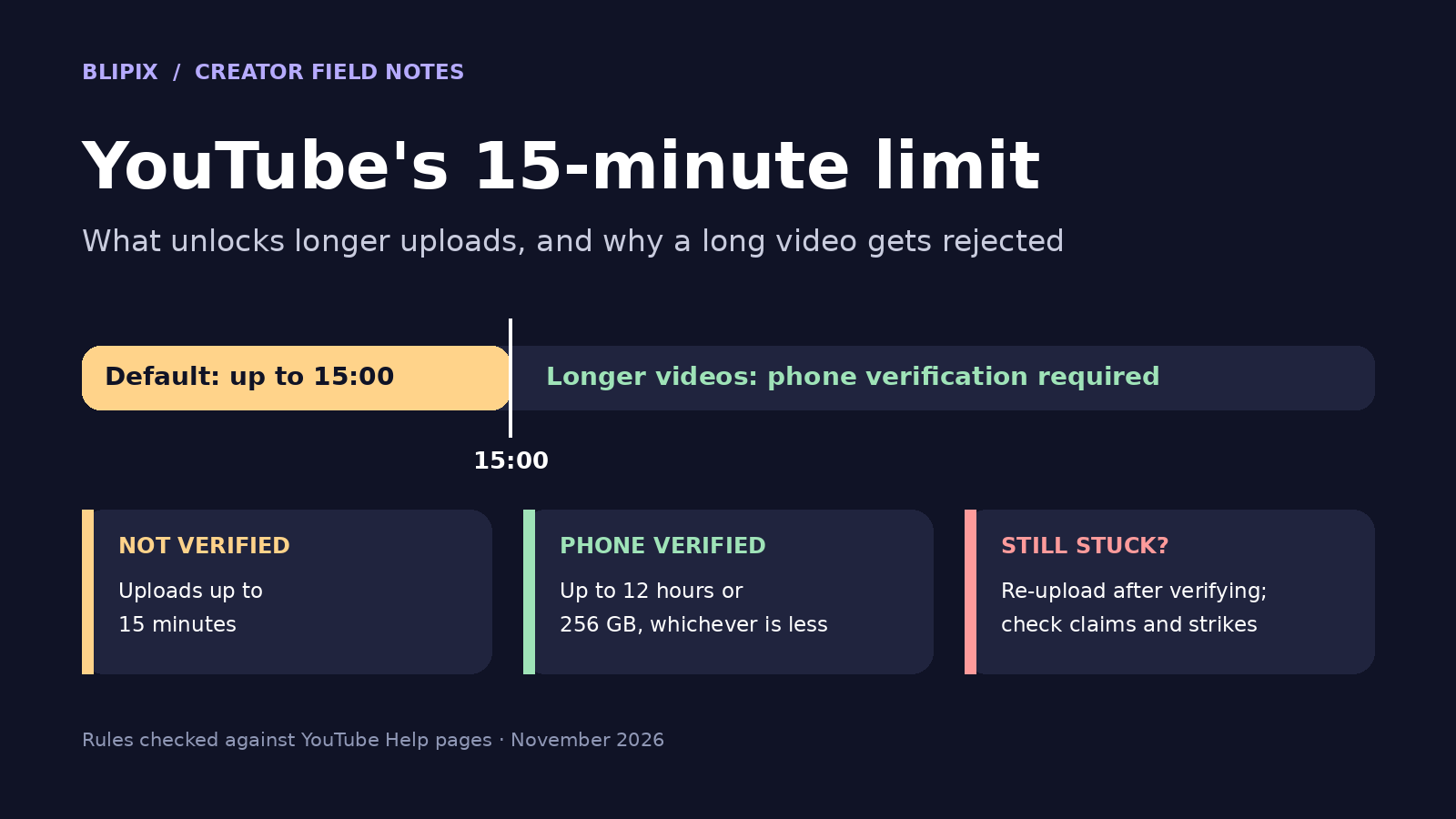
You finish a 16-minute video and upload it. Then it gets stuck, gets rejected, or sits in YouTube Studio and won't play. On a new channel, the first thing we'd check isn't the file. It's a default setting: YouTube accounts can upload videos up to 15 minutes long, and to go longer you have to verify the account with a phone number.
This guide covers the length limits that apply as of November 2026, how to unlock longer uploads, and what to do when a long video fails even after you've verified. It's written for creators posting past 15 minutes for the first time, including faceless channels that publish through AI or automation tools. It covers video length only. For title and description limits, see our guide to YouTube title, description, and tag limits.
The facts below come from YouTube's own Help and developer pages, linked where we use them. Where we add our own advice, we say so.
In short
- By default, YouTube lets you upload videos up to 15 minutes long. Longer uploads need a verified account, which means confirming a phone number.
- Once you're verified, the limit becomes 256 GB or 12 hours, whichever is less.
- Shorts are a separate format: up to 3 minutes, square or vertical.
- If you uploaded a long video before you verified, you need to upload it again afterward.
- If you could upload long videos before and now can't, check your channel for copyright claims and strikes.
- Our advice: verify before your first long upload, and check the runtime of the exported file before you post.
The three length limits on YouTube, and what unlocks each
YouTube's Help page on uploading videos longer than 15 minutes states the main rule: "By default, you can upload videos that are up to 15 minutes long. Verified accounts can upload videos longer than 15 minutes." The same page sets the upper limit: "The maximum file size you can upload is 256 GB or 12 hours, whichever is less." It also says older videos may be longer than 12 hours because the limits changed. Finding one of those on YouTube doesn't mean you can upload one today.
Shorts have their own, lower limit. When you upload a Short, YouTube asks for a short-video file up to 3 minutes long with a square or vertical aspect ratio.
| Length limit | Applies to | What unlocks it |
|---|---|---|
| Up to 3 minutes | Shorts | A square or vertical file of up to 3 minutes, uploaded as a Short |
| Up to 15 minutes | Regular uploads on any account | Nothing extra; this is YouTube's default |
| 256 GB or 12 hours, whichever is less | Uploads from verified accounts | Phone verification, which turns on intermediate features |
"Whichever is less" applies in both directions. A file under 12 hours but over 256 GB is still too big. A small file that runs past 12 hours is still too long.
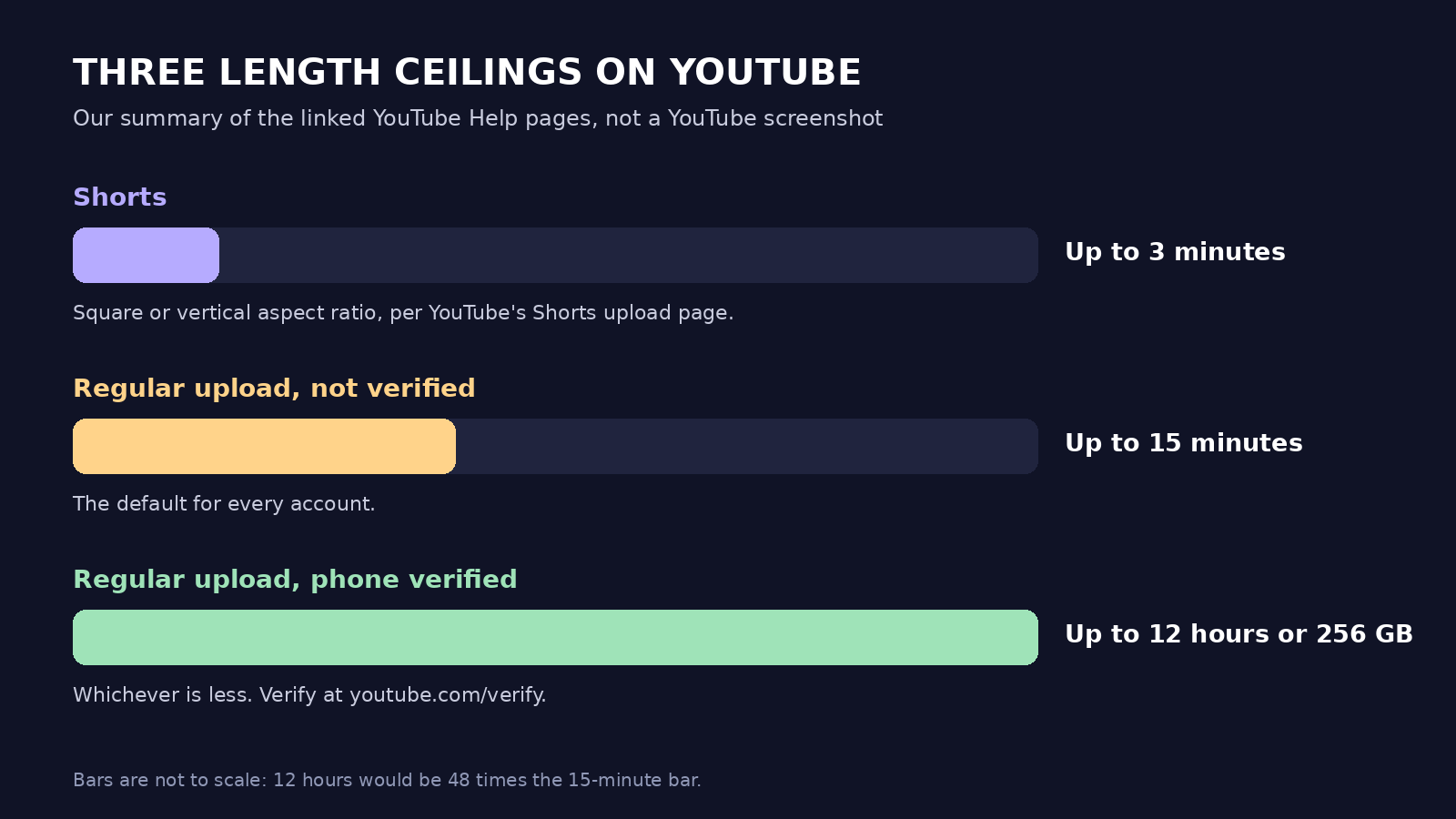 Our own diagram summarizing the linked YouTube Help pages, not a YouTube screenshot.
Where the 15-minute limit comes from: YouTube's feature levels
YouTube sorts channel features into three levels, described on its page about feature access for creators:
- Standard features are available as soon as you create a channel, as long as it has no active Community Guidelines strikes.
- Intermediate features require verifying your phone number. They include "Longer videos (>15 mins)", live streaming on a computer, custom thumbnails, and creating a podcast.
- Advanced features require enough channel history, or verifying your identity with a valid ID or a video. YouTube says the ID or video option isn't available to all creators. Advanced features include applying for monetization, adding chapters, pinning comments, clickable links in long-form descriptions, Content ID appeals, and higher daily limits.
So uploading past 15 minutes is an intermediate feature. It takes a phone number, not channel history or an ID. YouTube's page on getting access to intermediate and advanced features says verification makes things harder for scammers and spammers. It also says that not following Community Guidelines delays eligibility.
A few related topics are covered in other articles. Chapters are an advanced feature; our guide to YouTube chapters and timestamps explains them. Posting cadence and daily limits are covered in how many Shorts to post a day. If ads are part of why you're making longer videos, YouTube's mid-roll ads page says "On monetized videos that are 8 minutes or longer, you can turn on ads during the middle of the video." That threshold is well under 15 minutes. For earnings, see how much YouTube pays per view or our YouTube views calculator.
How to verify your YouTube account, step by step
To verify, you enter a phone number and receive a code by text message or automated voice call, as described on YouTube's page about verifying your account.
- Check whether you're already verified. In YouTube Studio, go to Settings > Channel > Feature eligibility. Look for "Enabled" in the "Features that require a phone verification" box. If it's there, skip to step 6.
- Start verification on a computer. Go to youtube.com/verify and follow the steps. You can also start from Feature eligibility: open Intermediate features and select "VERIFY PHONE NUMBER".
- Enter a phone number you control. YouTube says a number can be "linked to no more than 2 channels per year." If you run several channels, plan ahead.
- Choose text message or voice call to receive your code.
- Enter the code, then check Feature eligibility again to confirm longer videos are enabled.
- Upload the long video. If you uploaded it before verifying, upload it again from Studio using CREATE.
Verifying also unlocks custom thumbnails, live streaming, and appealing copyright claims. One caveat: YouTube says only primary channel owners can verify their identity to get access to additional features. If you help run a channel someone else owns, expect the owner to handle verification.
Troubleshooting: why a long upload still fails
If a long video is stuck, rejected, or won't play, go through these checks in order. They're based on the troubleshooting notes on the two YouTube Help pages linked above.
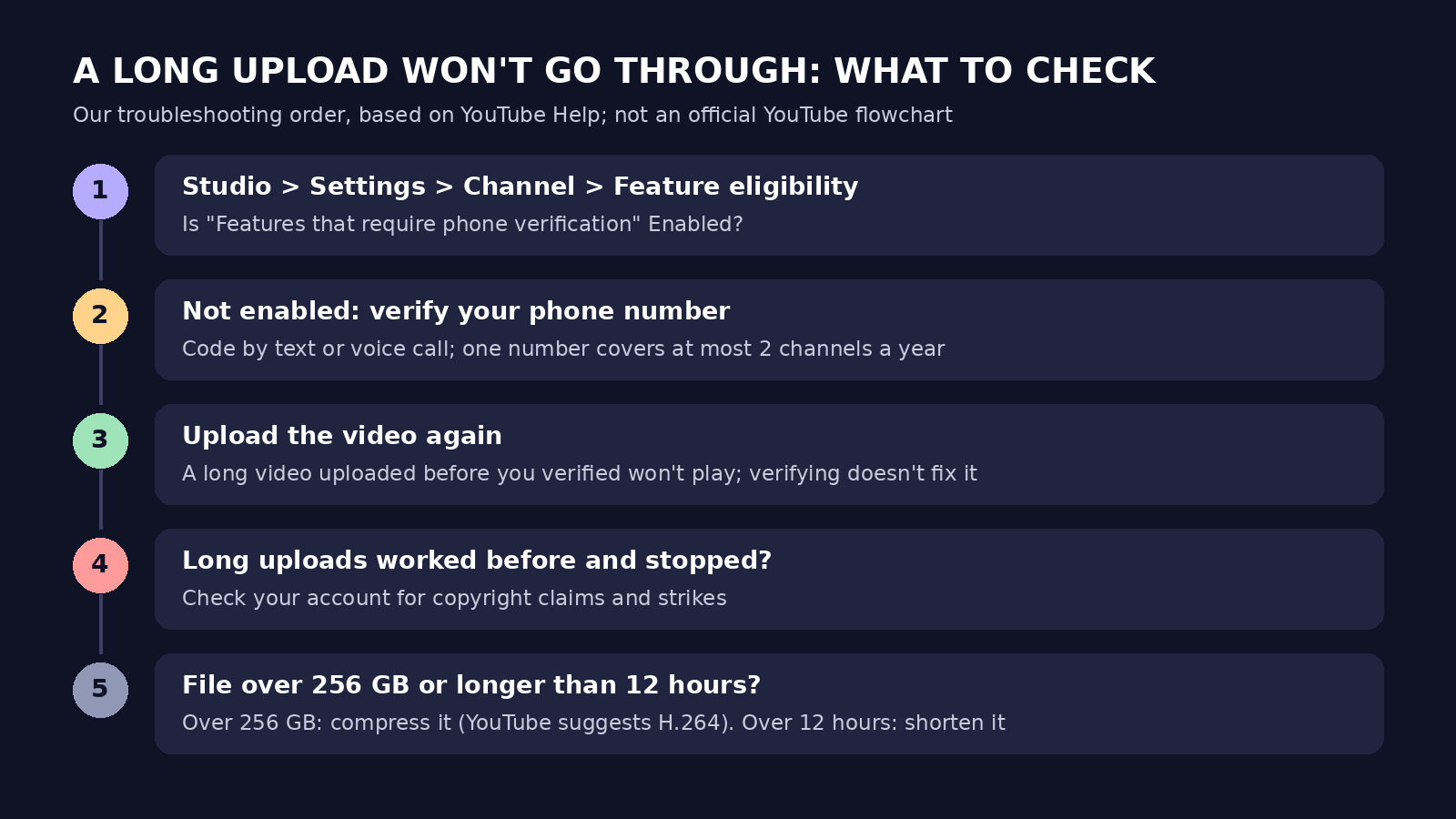 Our own diagram summarizing the linked YouTube Help pages, not a YouTube screenshot.
- Check Feature eligibility. If longer videos aren't enabled under Settings > Channel > Feature eligibility, your channel is still on the 15-minute default.
- Verify your phone, and work around code problems. Not all carriers support Google's text or voice messages. If a code doesn't arrive, try the other option or a number from another carrier. Texts can be delayed, so a voice call is worth trying. If you see "This phone number has already created the maximum number of accounts," that number has hit its limit. Use a different one.
- Upload again. YouTube addresses "I verified my account but my video still won't play" directly. After verifying, you need to upload the video again (Studio > CREATE).
- Check claims and strikes. If you used to upload long videos and no longer can, YouTube says to check your account for copyright claims and strikes. Its feature access page also says Community Guidelines violations may restrict feature access.
- Check file size and length. If a file is over 256 GB, compress it in your editing software; YouTube suggests the H.264 codec. Files greater than 20 GB need an up-to-date browser. A video over 12 hours has to be shortened or split.
When an AI or automation tool does the uploading
If you publish through an AI video tool or scheduler instead of the YouTube website, there's one more thing to know. A tool that uploads through YouTube's API sends the file to YouTube, and YouTube decides what happens to it from there. YouTube's Data API documentation for videos lists upload statuses that include processed and rejected. Its list of rejection reasons includes length, along with others such as claim, copyright, and duplicate.
That means an upload your tool sent without any problem can still be rejected by YouTube. A "sent" or "published" status in a tool doesn't tell you whether YouTube accepted the video. Check the video in YouTube Studio, especially the first time you post something over 15 minutes. Verification belongs to your YouTube channel, so you handle it on YouTube, not inside the tool.
A hypothetical example: a new faceless channel's 16-minute documentary won't play
This example is hypothetical. It describes an invented channel to show the steps. It is not a Blipix customer or any real creator.
A creator starts a faceless history channel. A few weeks in, they finish its first long video: a documentary-style piece about a shipwreck, with AI narration over archival-style footage. The exported file runs about 16 minutes. They publish it through the scheduler they use for everything else, which reports it as sent. In YouTube Studio, the video won't play.
Here's how they fix it:
- Check eligibility. Feature eligibility shows that longer videos aren't enabled. The channel never verified a phone number, so it was still limited to 15 minutes.
- Try to verify. On a computer, they go to youtube.com/verify and enter their usual number. YouTube shows "This phone number has already created the maximum number of accounts." They had used that number for two other channels earlier in the year.
- Use a different number. They verify with another number they control and enter the code from the text message. Feature eligibility now shows the feature as enabled.
- Upload again. The original upload still won't play, which matches YouTube's troubleshooting note. They upload the file again from Studio with CREATE, let YouTube finish processing, and check that it plays before making it public.
Afterward, they change two habits. They verify each new channel before its first long video, and they keep a note of which phone number goes with which channel. If they hadn't been able to verify that day, they could have trimmed the video to under 15 minutes or split it into two parts.
Our advice before your first long upload
These are our recommendations, not YouTube's rules.
- Verify before your first long upload, not after. If you verify first, you never have to re-upload a video that got stuck.
- Plan phone numbers across channels. A number can be linked to no more than 2 channels per year, so decide which number goes with which channel before you need it.
- Check the runtime of the exported file. YouTube sees the file you upload, not your project timeline. A video at 15:00 plus a second is over 15 minutes, so "about 15" isn't safe on an unverified channel. Intro cards, outro music, and narration that runs a little long all add time.
- If you can't verify yet, cut or split. Trim the video to under 15 minutes, or break it into parts.
- Make the video as long as the material needs. A longer video isn't more original or valuable just because it's longer. Our piece on YouTube's inauthentic content policy for faceless AI channels covers that question in depth.
If you're still setting up the channel, our guide to starting a faceless YouTube channel covers the earlier steps. We'd add phone verification to that list.
What this means if you use Blipix
Blipix is our product, so here is how all of this applies to it, as of November 2026.
- Long videos max out at 15 minutes. Blipix makes narrated long-form videos up to 15 minutes, and its longest length setting is "12 to 15 minutes." Long videos are available on the Pro plan and above (see pricing). Our AI long-form video generator page describes the tool.
- Runtime depends on the script. Blipix sizes the script to a word range for the length you choose. For 12 to 15 minutes, that's roughly 1,800 to 2,250 words. The final runtime depends on the script and the narration, so a video at that setting can land right at the 15-minute mark. Our advice: if your channel isn't verified, check the runtime before posting, or choose the 10 to 12 minute setting.
- YouTube decides whether to accept long uploads. Paid plans can publish to YouTube from Blipix, as well as to TikTok and Instagram. When Blipix publishes to YouTube, it uploads through YouTube's API, and YouTube then processes the video. Whether YouTube accepts a long upload depends on your channel's verification, and that's YouTube's decision, not Blipix's. Verify the channel first, and check YouTube Studio after any long upload.
- Shorts are a separate format. In Blipix, vertical videos up to 3 minutes work for Shorts; see making YouTube Shorts.
FAQ
Can I upload a video longer than 15 minutes without verifying?
No. YouTube's default limit is 15 minutes, and longer uploads require a verified account. If you can't verify yet, trim the video to under 15 minutes or split it into parts.
Do I need an ID to upload long videos?
No. Longer videos are an intermediate feature, unlocked by phone verification. Verifying your identity with an ID or a video is one way to get advanced features, such as applying for monetization, and YouTube says that option isn't available to all creators.
Can one phone number verify several channels?
Up to two a year. YouTube says a phone number can be linked to no more than 2 channels per year. If you see "This phone number has already created the maximum number of accounts," use a different number.
I verified. Why won't my earlier upload play?
YouTube's Help page covers this case: after verifying, you need to upload the video again from YouTube Studio using CREATE. If the new upload also fails, go through the troubleshooting steps above.