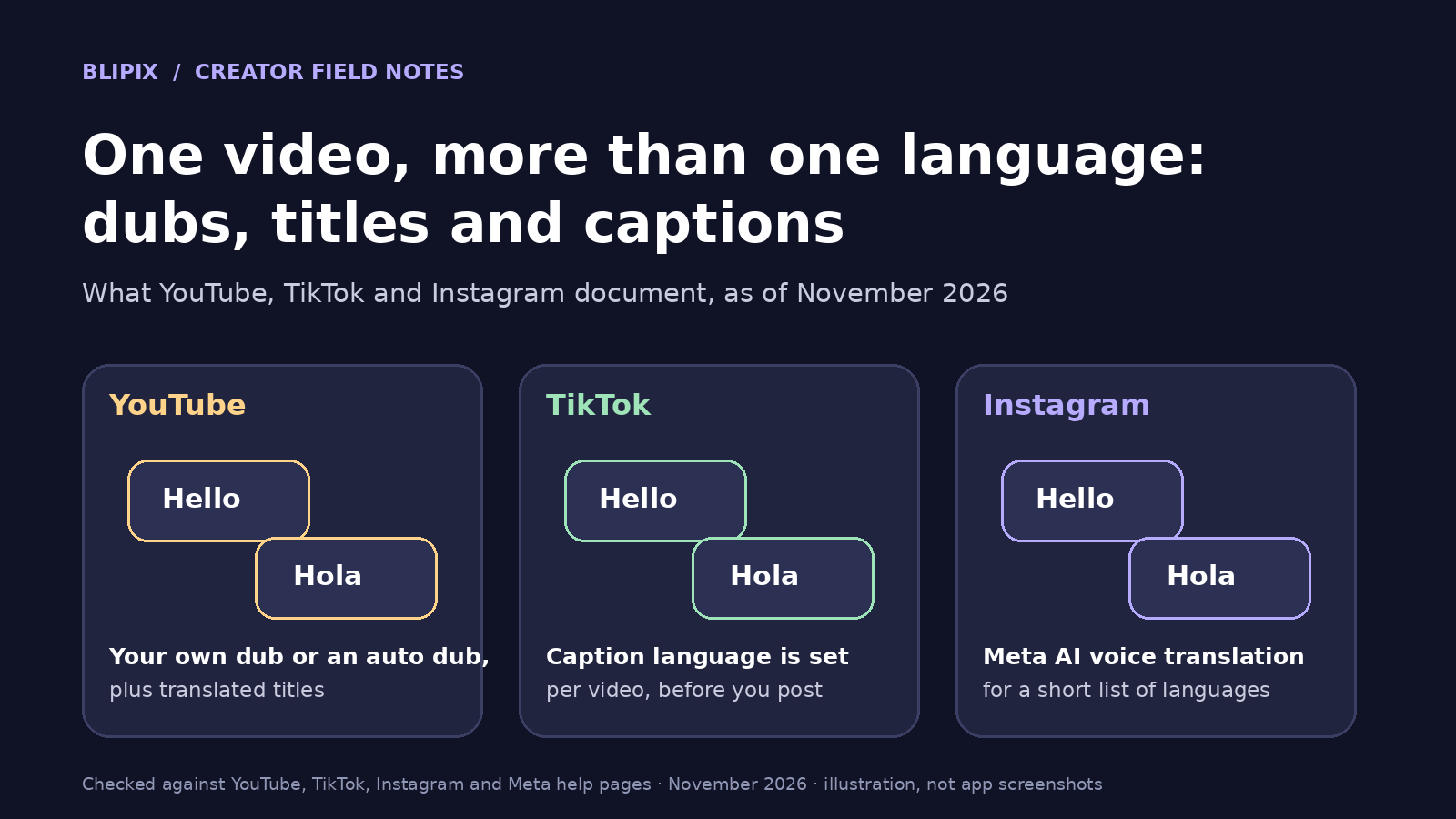
A typo in a title, a wrong word in a caption, a clip that cuts off early, a cover you dislike: once a video is live, the question is whether you can fix it in place or have to delete it and upload a new version.
This guide explains what YouTube, TikTok and Instagram document about changing a video after it is posted (text, cover, audience, trimming, captions, deleting and restoring) and what we can see in our own publishing code. It does not say whether you should fix, delete or leave a post, or how a fix or a re-upload will affect reach or views, and it is not a ranking guide. The platforms' own pages are the source. Menus, limits and availability change and differ by account and app version, so treat this as a map of the documentation as of November 2026.
We wrote it for creators and small teams who publish short videos, including AI faceless videos.
In short
- Fixes come in three kinds: text and cover, audience, and the video itself.
- YouTube: edit details in Studio and trim or cut on a computer while keeping the URL, but you can't replace the file, and saved Editor changes are permanent.
- TikTok: the pages we cite cover privacy, auto-generated captions, and deleting with up to 30 days to restore, but not editing a posted video's description or cover.
- Instagram: edit a reel's caption and location, archive it, or restore deleted content within 30 days. Its own pages disagree on changing a cover.
- Wrong footage means a new upload. Our advice: make sure the new version is live before deleting the old one.
Three kinds of fix people mix up
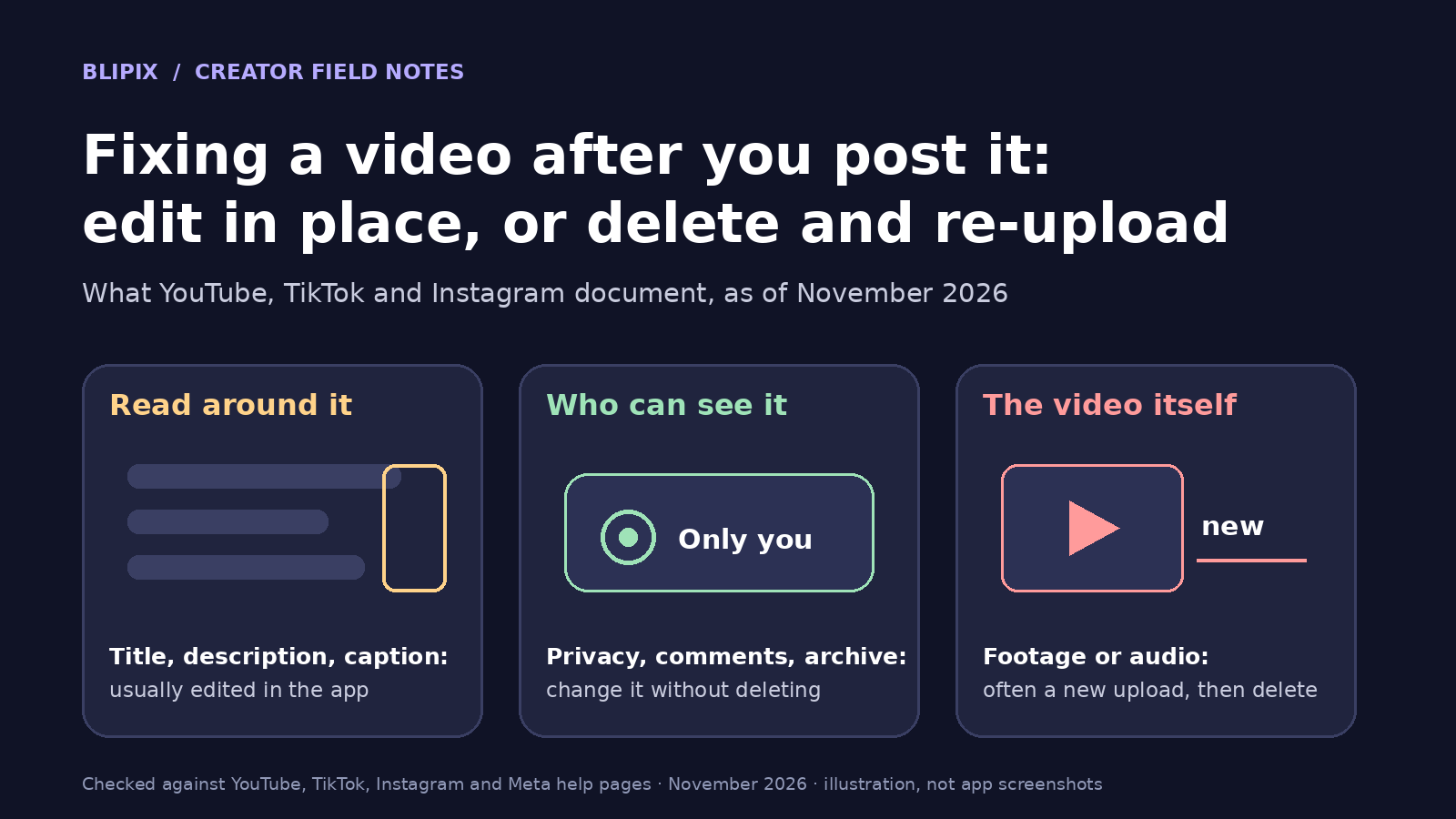
Name the problem before you open any menu:
- What people read or see around the video: the title, description or caption, and the cover or thumbnail. A typo in a title or a cover you dislike belongs here.
- Who can see it: privacy or visibility, comments, and archiving.
- The video itself: footage, audio and any text burned into the frames. A clip that cuts off early belongs here, and so does a typo in captions rendered into a faceless video, because that text is part of the file.
On the pages we cite, most apps let you change the first two kinds in place. The third is where those pages differ most.
YouTube: edit the details or trim, but you can't swap the file
YouTube's Help page on replacing or deleting a video is direct: you can't replace a video, because "any new video you upload to YouTube will get a new URL." You can modify the existing one instead.
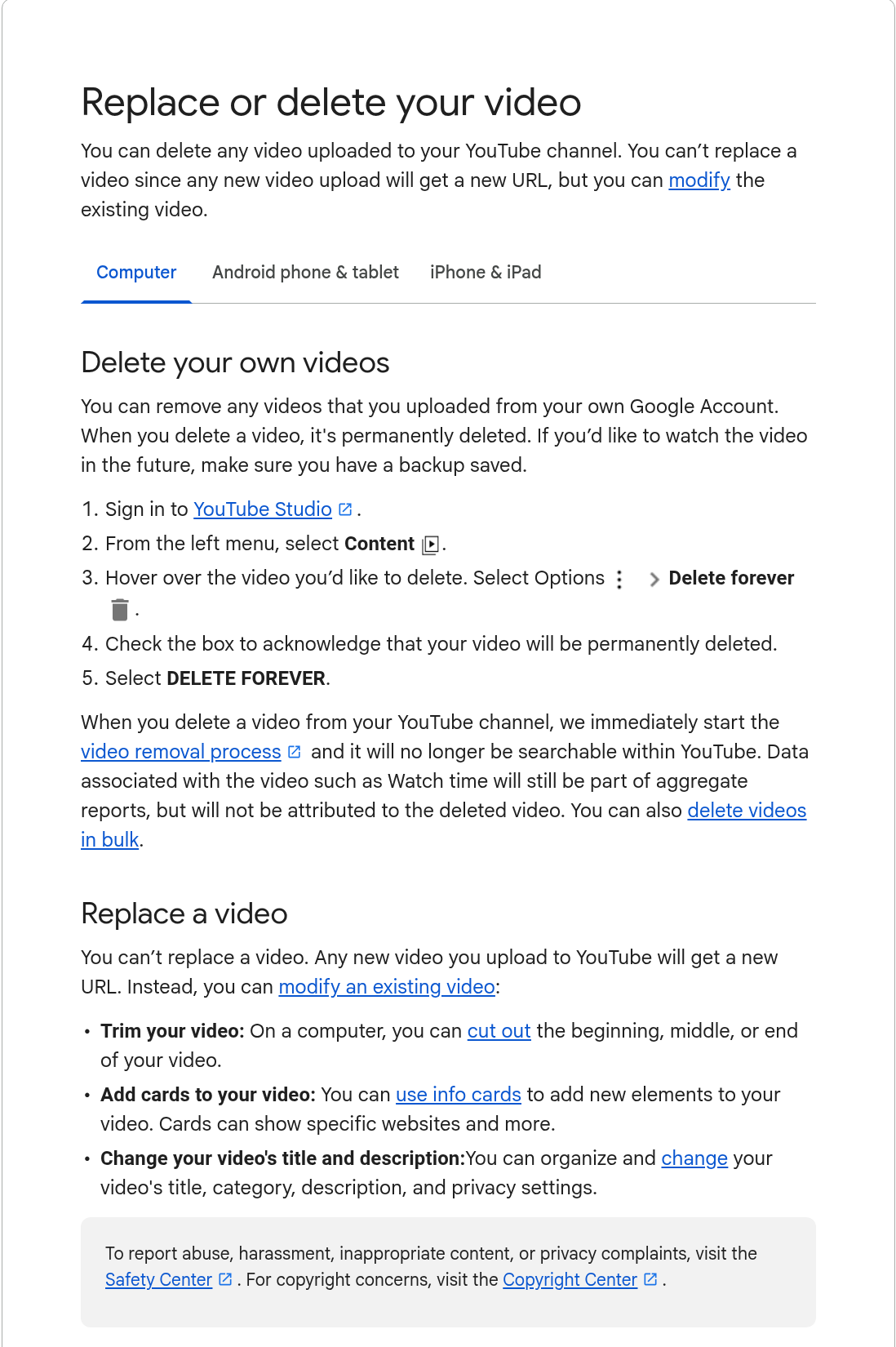
Cropped screenshot of YouTube's public Help page "Replace or delete your video", taken November 22, 2026.
Details. In YouTube Studio, select Content, click the video, change the settings and select Save. YouTube's list of video settings includes the title, description, thumbnail, audience, visibility, and comments and ratings.
Corrections. You can add a description line that starts with "Correction:" or "Corrections:" (in English). Put a timestamp and explanation on a separate line, and place the whole thing after any chapters. Viewers then see a View Corrections info card. The page notes this isn't available if the channel has active strikes or if the content may be inappropriate to some viewers.
Trimming. On a computer, Studio's Editor lets you cut out the beginning, middle or end of a video without re-uploading, and the URL, view count and comments stay the same. It is available for videos shorter than six hours. If an unedited video has over 100,000 views, you may not be able to save changes to it except blurring faces. That restriction does not apply to channels in the YouTube Partner Program. The page does not single out Shorts, so check the Editor for your own Short.
Saved edits are permanent. Since June 2025, "Revert to original" is no longer available. YouTube's page on previewing and reviewing changes asks you to preview before saving, review the published video on the watch page afterward, and select "I acknowledge that these changes are permanent" to confirm. If you uploaded multi-language audio tracks yourself, the same edits apply to those tracks too. Studio can't preview them, so check them on the watch page once they have processed. The same page describes Trim out segment, Replace song and Erase song for claimed music. Our guide to copyright-safe music covers the rules on music.
Deleting. In Studio, go to Content, hover over the video, select Options and then Delete forever, tick the box and confirm. Deletion is permanent, so YouTube says to "make sure you have a backup saved." Watch time stays in aggregate reports but is no longer attributed to the deleted video.
TikTok: privacy, captions and deletion are documented, post edits are not
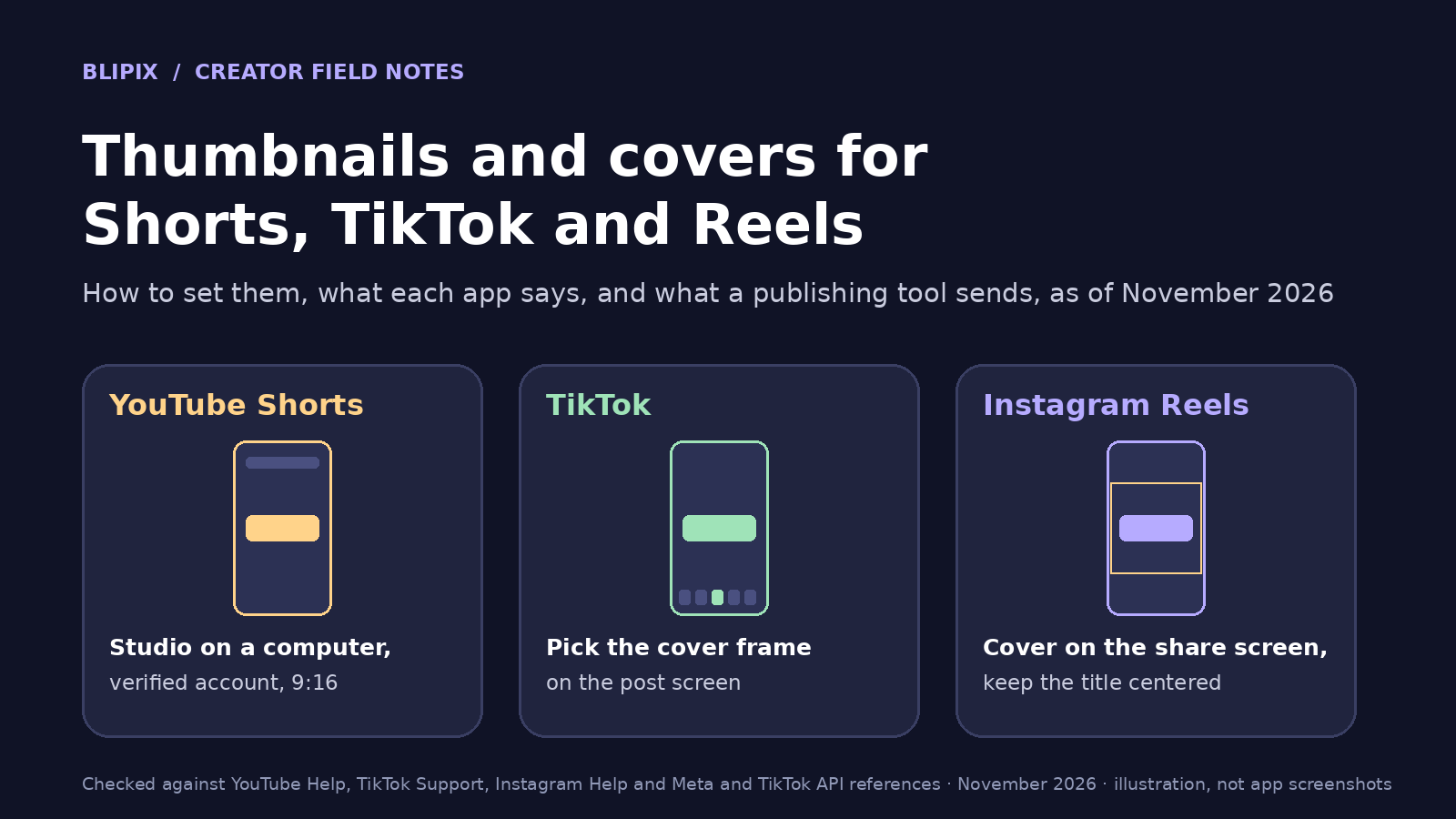
Cover. TikTok's page on editing, posting and deleting says, "You can select a video cover before posting a new video," and says nothing about changing it afterward. Our guide to thumbnails and covers explains how to choose one.
Auto-generated captions. TikTok's accessibility page says you can edit or remove these after posting: tap the caption on your video, tap Edit captions, make your changes and tap Save. This doesn't change text burned into the video. Our auto-captions guide goes deeper.
Privacy. For a post that is already live, TikTok's post privacy page says to open it from your Profile, tap More options, then Privacy settings, and choose who can view it. TikTok notes that the view count "reflects all views to date and doesn't reset" when you change the setting.
Deleting and restoring. Tap More options on the video, then Delete. The post stays in TikTok's system for up to 30 days. Within that window you can restore it from Profile > Menu > Settings and privacy > Activity center > Recently deleted > Restore, and its comments and likes come back with it.
The description or cover of a posted video. On the pages we cite, "Edit post" appears only in the accessibility page's steps for adding alt text to photos. We found no Support Center page describing how to edit a posted video's description or cover. So we don't state what your app allows, what the limits are or how often you can edit. If your app offers an edit option, its edit screen is where any limits appear, so check there.
Instagram: edit the caption, archive or delete, and check the cover yourself
Text and visibility. Instagram's page on managing reels says to tap Options on the reel, then Manage. There, Edit changes "things like the caption and location of your reel." Instagram's caption page describes the same Options, then Edit route for existing posts. The Manage menu also has Turn off commenting, Hide likes and Archive, and the reel can be deleted.
Cover. As our covers guide notes, Instagram's sources disagree. The Help Center's reel size page says, "Right now, you can't edit your cover photo after you've uploaded it." Instagram's Reels guide, posted September 28, 2026, says: "You can edit the caption, cover image, tags and location after posting. To change the video itself, you'll need to delete the reel and re-upload an edited version." Check your own Options > Manage > Edit screen for a cover option.
Deleting and restoring. According to Instagram's page on deleted content, deleted content moves to Recently Deleted and is removed automatically 30 days later. During those 30 days other people can't see it, and you can restore it in the Instagram app for Android and iPhone. Deletion can take up to 90 days to complete after it begins.
Side by side: what each platform's pages describe
This table summarizes the pages linked above. "Not described" means the pages we cite say nothing about it. It does not mean it can't be done.
| Platform | Change text in place | Change the cover | Change or replace the video itself | Hide without deleting | Delete and restore |
|---|---|---|---|---|---|
| YouTube | Title, description and other details in Studio, then Save | Thumbnail is a listed video setting | "You can't replace a video"; trim or cut on a computer, permanent once saved | Visibility and comment settings | Delete forever is permanent |
| TikTok | Auto-generated captions can be edited; description not described on the pages we cite | Chosen before posting; changing it later not described on the pages we cite | Not described on the pages we cite | Privacy settings, such as Only you | Kept up to 30 days; restore from Recently deleted |
| Caption and location via Options > Manage > Edit | Sources disagree: Help Center says you "can't edit your cover photo," Reels guide says you can | Reels guide: delete and re-upload an edited version | Archive or turn off commenting | Recently Deleted for 30 days, can be restored; up to 90 days to complete |
When the video itself is wrong: upload a new version, then remove the old one
For a problem in the footage, audio or burned-in text, the pages point one way. YouTube says you can't replace a video, and trimming only removes footage. Instagram's Reels guide says to delete and re-upload. TikTok's pages describe no way to change footage after posting.
Our advice, not a platform instruction:
- Keep the original export. A deleted YouTube video is gone for good.
- Upload and check the new version before deleting the old one, so nothing goes dark in between.
- Remember that a new upload is a new post. On YouTube it gets a new URL, so anything you linked to still points to the old one.
- Don't assume anything about the old post's numbers. The pages we cite don't say what happens to them on TikTok or Instagram when you re-upload, and we don't claim either way.
- For a small typo in text, an in-place edit is usually the lighter fix.
Don't make a habit of deleting and re-uploading, and don't post several near-identical versions. See our guide to YouTube's rules on repetitive, mass-produced content.
Before you fix a live post
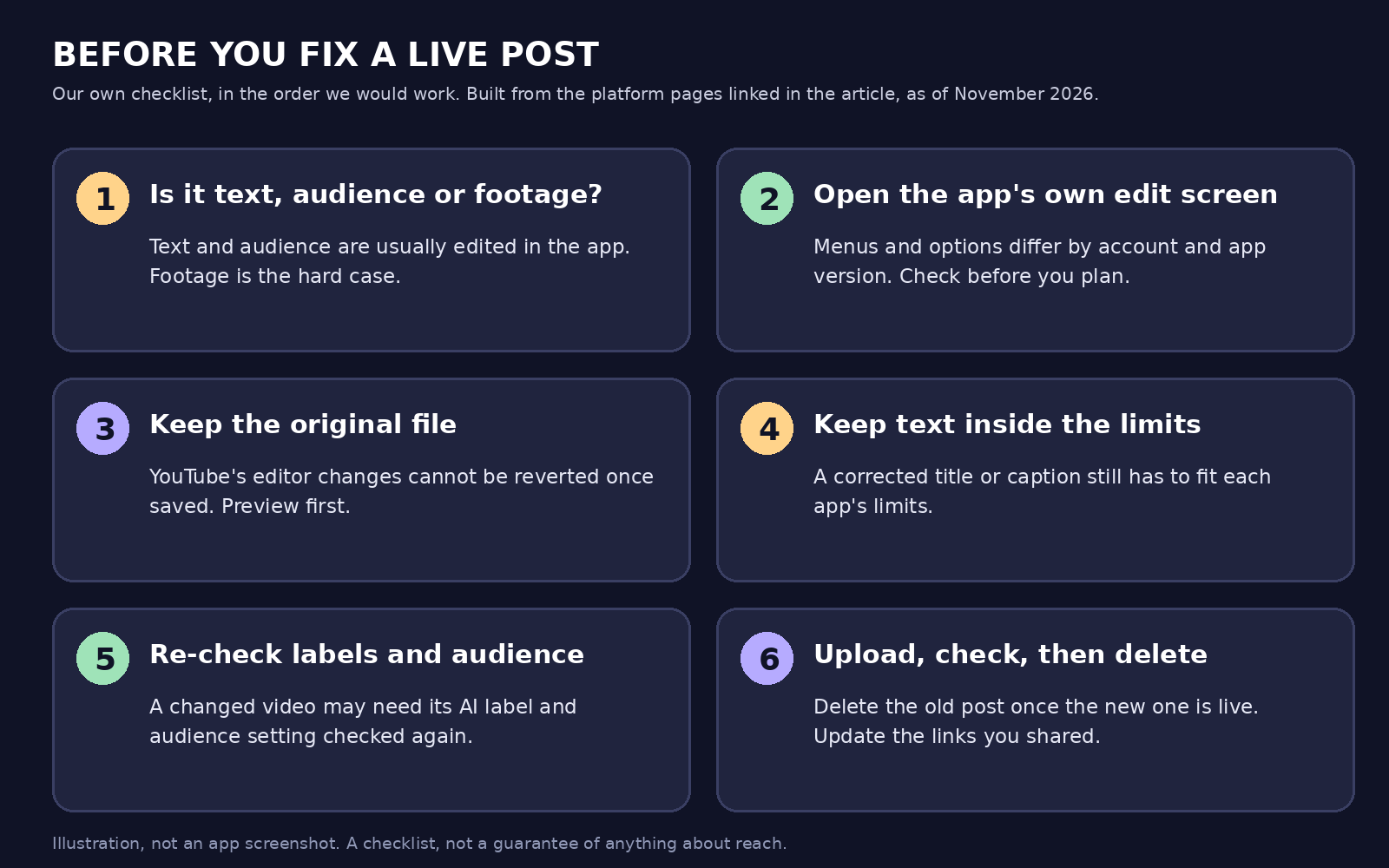
Our own summary graphic, not an app screenshot. The order is our advice, built from the platform pages linked in this article as of November 2026.
- Decide what kind of problem it is: text, audience or footage.
- Check the app's own edit screen first. It reflects your account and app version.
- Keep the original file and preview before saving any change in YouTube's Editor, since saved edits are permanent.
- Check text limits after rewriting a title or description, using our guides to YouTube title, description and tag limits and TikTok and Instagram caption limits.
- If the video changed, re-check labels and audience: the AI-generated content label where it applies, and YouTube's made-for-kids setting on the new upload.
- After a re-upload, delete the old post only when the new one is live, then update the links you shared.
What this means if you use Blipix
Blipix is our product. Here is what our app and code do as of November 22, 2026.
Whether you made a YouTube Short, an Instagram Reel or a TikTok video, Publish in the editor sends the same things to our publishing endpoint: the video's current rendered file and the title and description you entered. For YouTube and TikTok, it also sends your visibility and comment choices. Each publish creates a new post: the code calls YouTube's upload (videos.insert), TikTok's direct-post init, and Instagram's media container and then publish calls.
We reviewed our publishing endpoint, the editor header and the Series engine. None of that code calls anything that updates, replaces or deletes a post that is already live. In practice:
- Changing the footage means publishing a new post from Blipix and removing the old one yourself in the app.
- Titles, descriptions, privacy and captions on a live post are changed in each app, not from Blipix.
- Publishing twice creates two posts. The editor's publish buttons stay available after a video has been published. We found no check or warning in the code for an earlier publish of the same video.
Posts made by Series autopilot are recorded on the video's record in our database: the YouTube video id and link, and TikTok and Instagram entries with a status. Manual publishes from the editor don't store a post link in the code we reviewed, so keep your own note of where each one went.
For a post that failed or went private, see why tool posts fail or go private. For scheduled posts, we make no claim here about how they can be edited.
Our limits: we didn't test any platform's edit or delete flow with Blipix posts, didn't check which accounts can use which options, and didn't check what happens to analytics after a re-upload.
What we checked and what we did not
On November 22, 2026, we read every page linked in this article and reviewed our own publishing code. We didn't test these flows on live accounts. We didn't verify which options your account, app version or country has, and we didn't check any effect on reach.
FAQ
Can I replace a YouTube video file and keep the same URL?
No. A new upload gets a new URL, so YouTube says you can't replace a video. You can trim or cut it and change its title, description and other settings.
Can I trim a video on YouTube after posting?
Yes, on a computer, for videos shorter than six hours. The URL, view count and comments stay the same. Saved changes can't be reverted, and the page doesn't single out Shorts.
Can I edit a TikTok description after posting?
We found no TikTok Support page describing it, so check your app's edit screen for what is available. Auto-generated captions can be edited after posting.
Can I change an Instagram Reel cover after posting?
The sources disagree. The Help Center says you can't, and the Reels guide posted September 28, 2026 says you can. Check Options > Manage > Edit on your reel.
Is a deleted post gone right away?
On YouTube, deletion is permanent. On TikTok, a deleted post is kept for up to 30 days and can be restored. On Instagram, it stays in Recently Deleted for 30 days, and full deletion can take up to 90 days.